Back up your data
Your data lives on your iPhone, not on our servers. Keep your own copy of it as a moni backup file, and on the paid plans moni also syncs with your own iCloud.
-
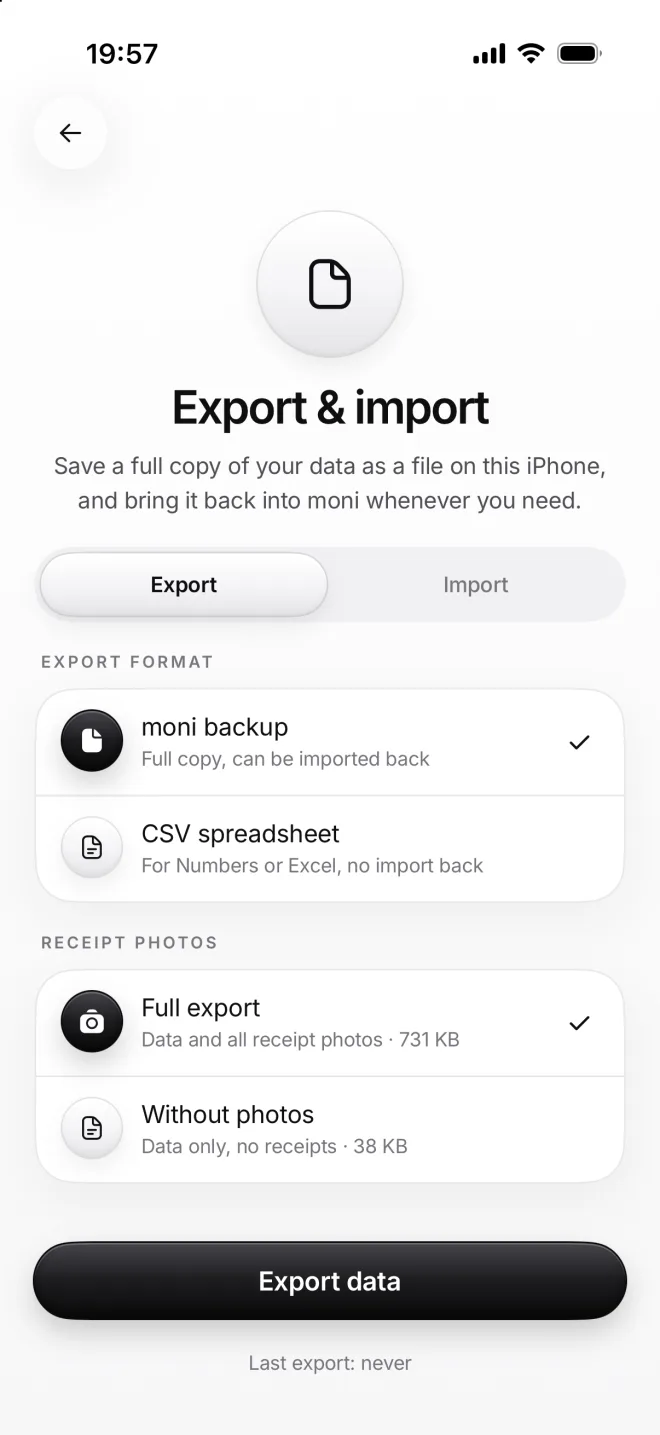
Choose moni backup
Open Export & import in Menu. A moni backup is a full copy: categories, transactions, budgets, settings, receipts.
Full export takes your receipt photos along, 731 KB here. Without the photos, the file holds everything else in just 38 KB.
-
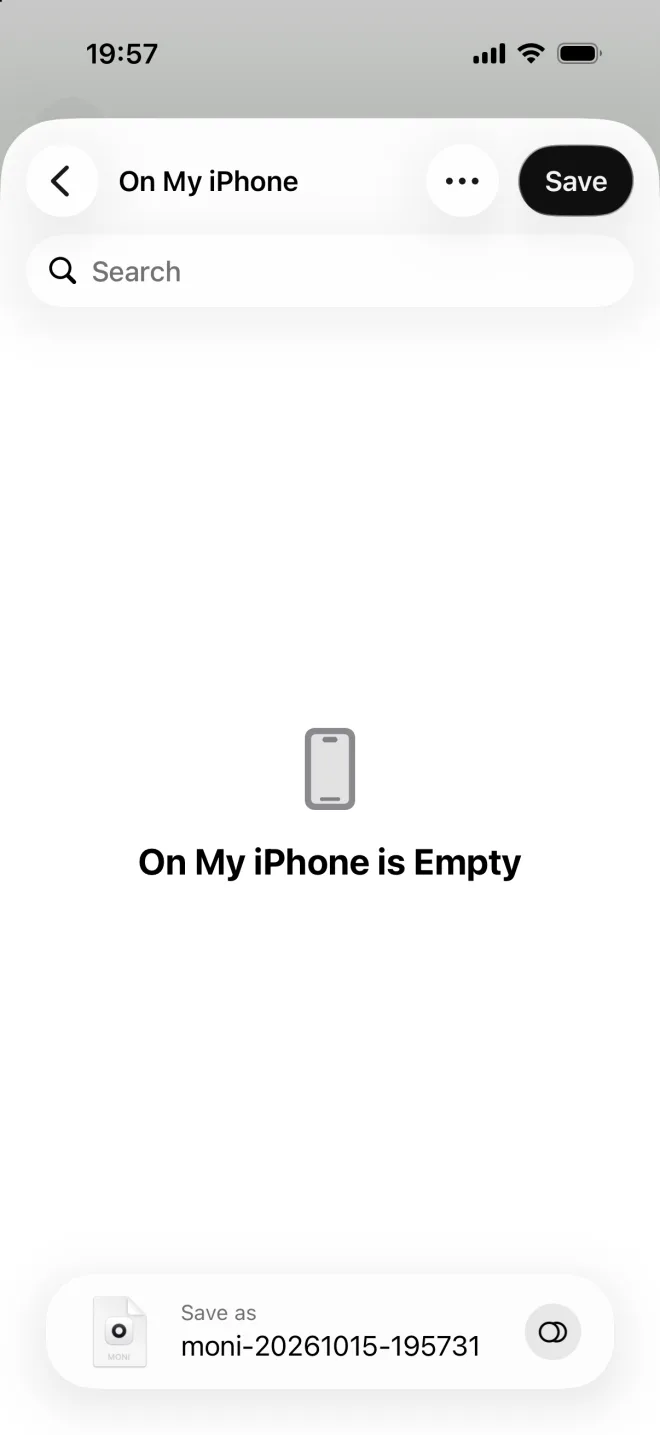
Save the file
Tap Export data and choose where to keep the file: on this iPhone, in iCloud Drive, or in any other place that Files can reach.
-
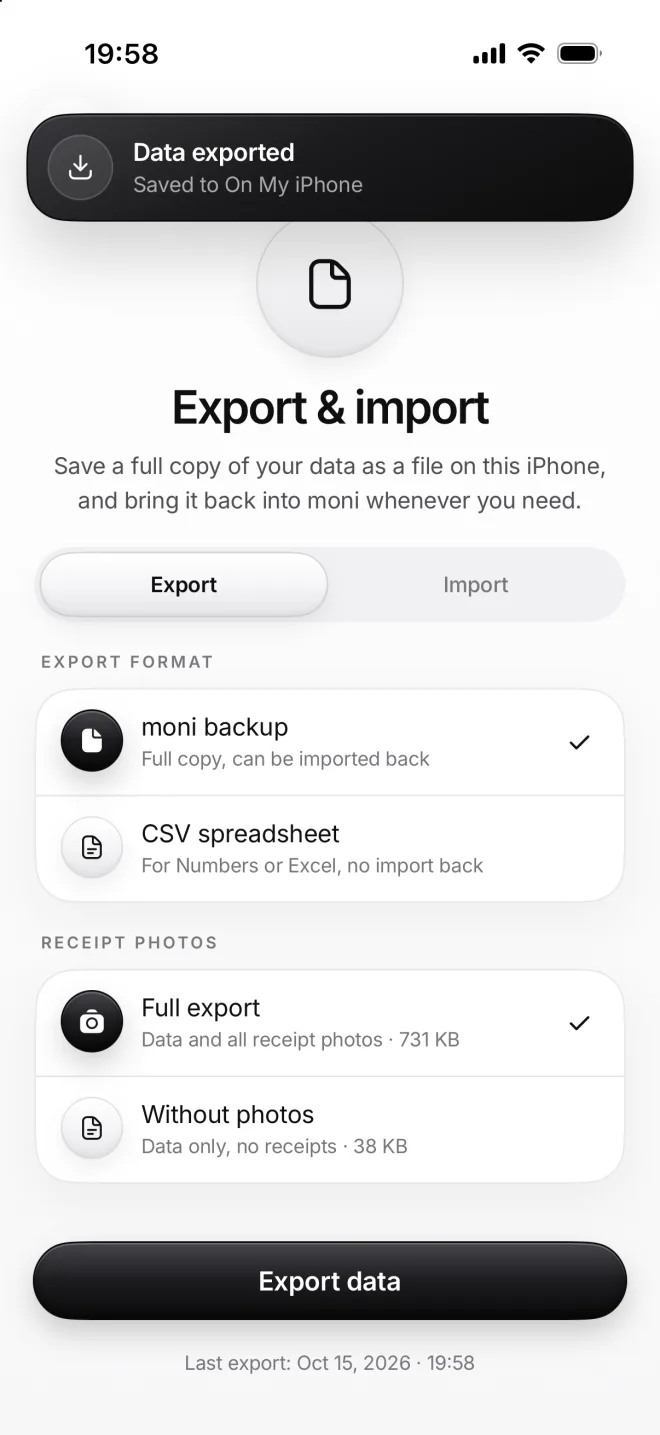
It’s saved
moni says where the file went and remembers when you made it. Make a fresh backup now and then, say every month.
If something goes wrong
Is the file encrypted?
It isn’t encrypted, but it’s signed: moni knows if anyone changed it by hand and then won’t read it. Keep it somewhere private, like your own iCloud Drive.
What about iCloud sync?
On paid plans moni syncs with your own iCloud right away. A backup file is still a good idea, though: it’s your own copy, wherever you decide to keep it safe.
Can I open the file?
A moni backup file opens only in moni. For a table you can read anywhere else, export a CSV spreadsheet instead: the next lesson shows you how, step by step.
Not enough space
The export stops with a note when your iPhone has no room left for the file. Choose Without photos for a much smaller file, or free up some space and try again.