Add moni widgets
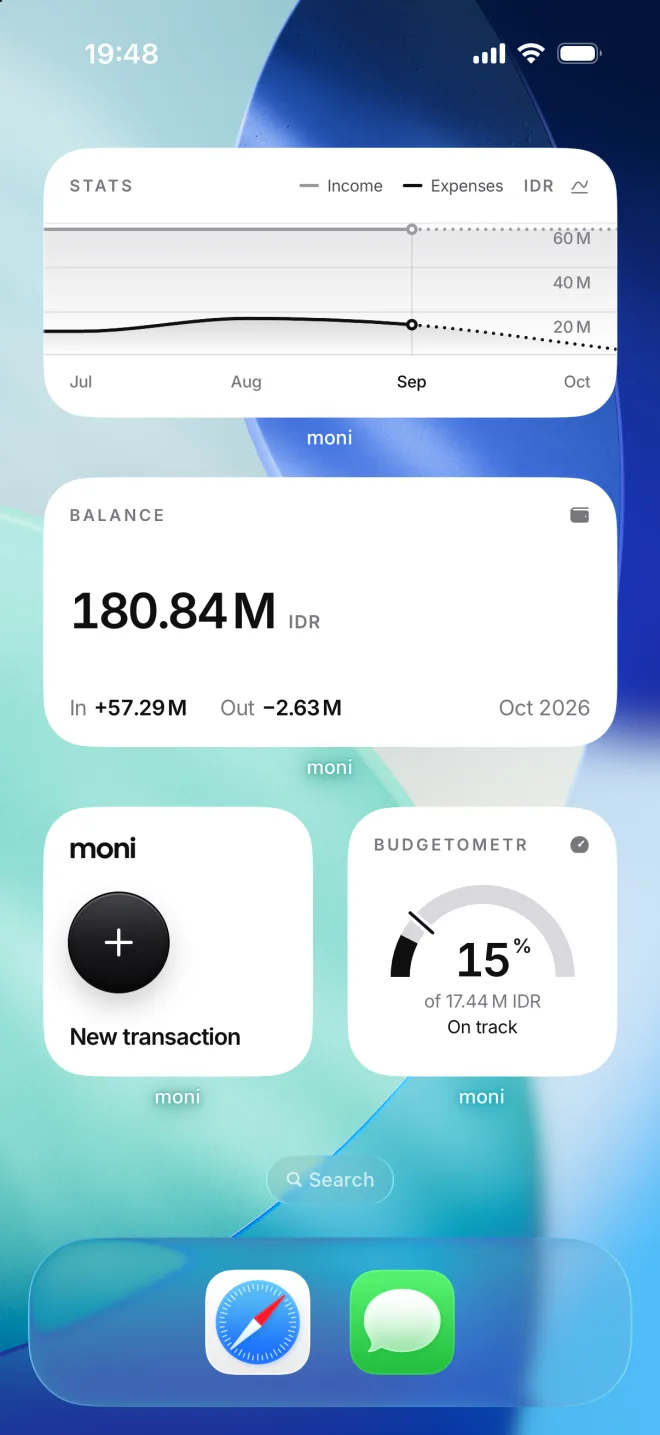
Widgets show your money right on the Home Screen, without opening moni at all: your balance, your budget, your Stats, or a button to add a transaction.
-
Find moni’s widgets
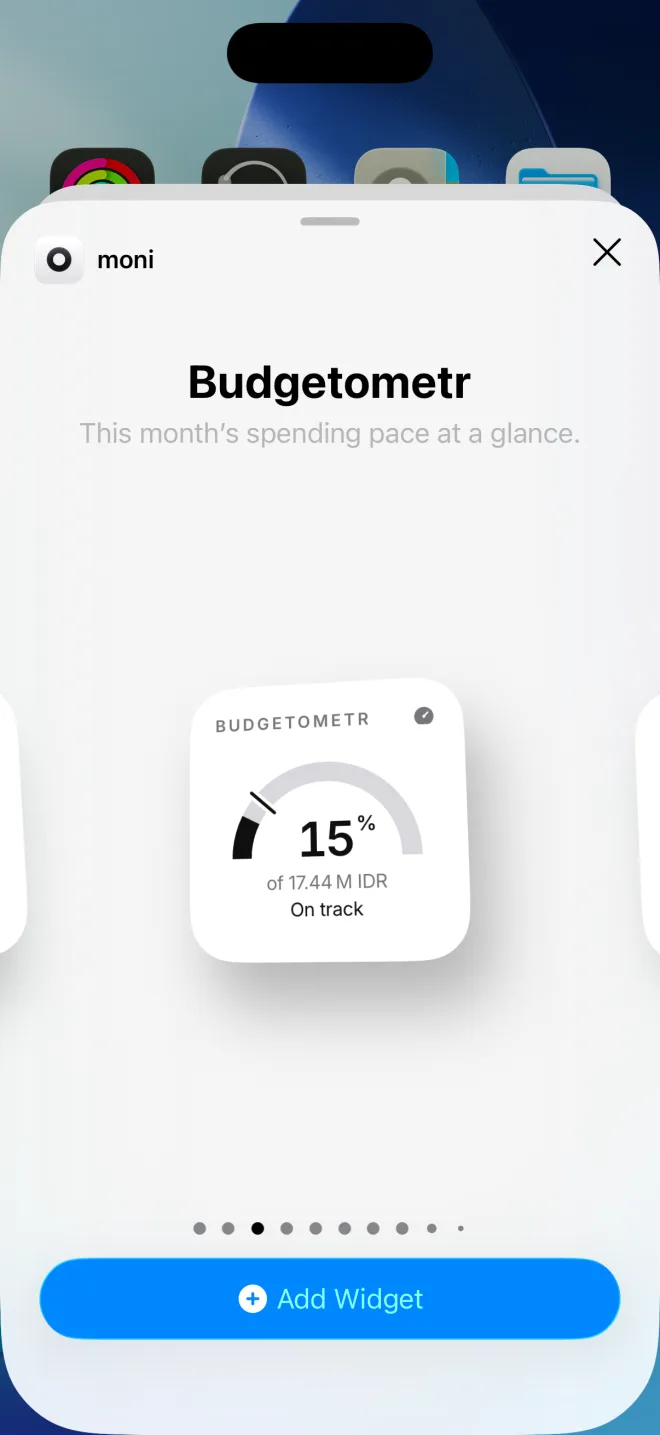
Hold an empty spot on the Home Screen, tap Edit, then Add Widget, and search for moni. Swipe to see all of the widgets.
-
Place them
Pick one and tap Add Widget. Budgetometr shows your pace, Stats your months; tap a widget to open moni on that page.
Widgets keep amounts visible even when you hide them in moni: they’re made to be seen at a glance, and update with moni.
If something goes wrong
Widgets on the Lock Screen
Touch and hold the Lock Screen, tap Customize, then the widgets area, and choose moni. Expenses, Budget, New transaction and Scan receipt fit there.
A button in Control Center
Open Control Center, tap +, then Add a Control, and pick New transaction or Exchange rates. The Action button can open a new transaction for you too.
The numbers look old
Widgets take their numbers from moni itself. Open moni once, and every widget gets the latest amounts and rates within a moment, with no need to do anything else.
Can widgets hide amounts?
No, widgets always show amounts: they’re made to be seen at a glance, right on the Home Screen. If you’d rather not show them, you can simply remove them.