Move moni to a new iPhone
Moving to a new iPhone? Bring all of moni along in a minute: make a backup file on the old one, then open it in moni on the new one, and that’s really all it takes.
-
Install moni
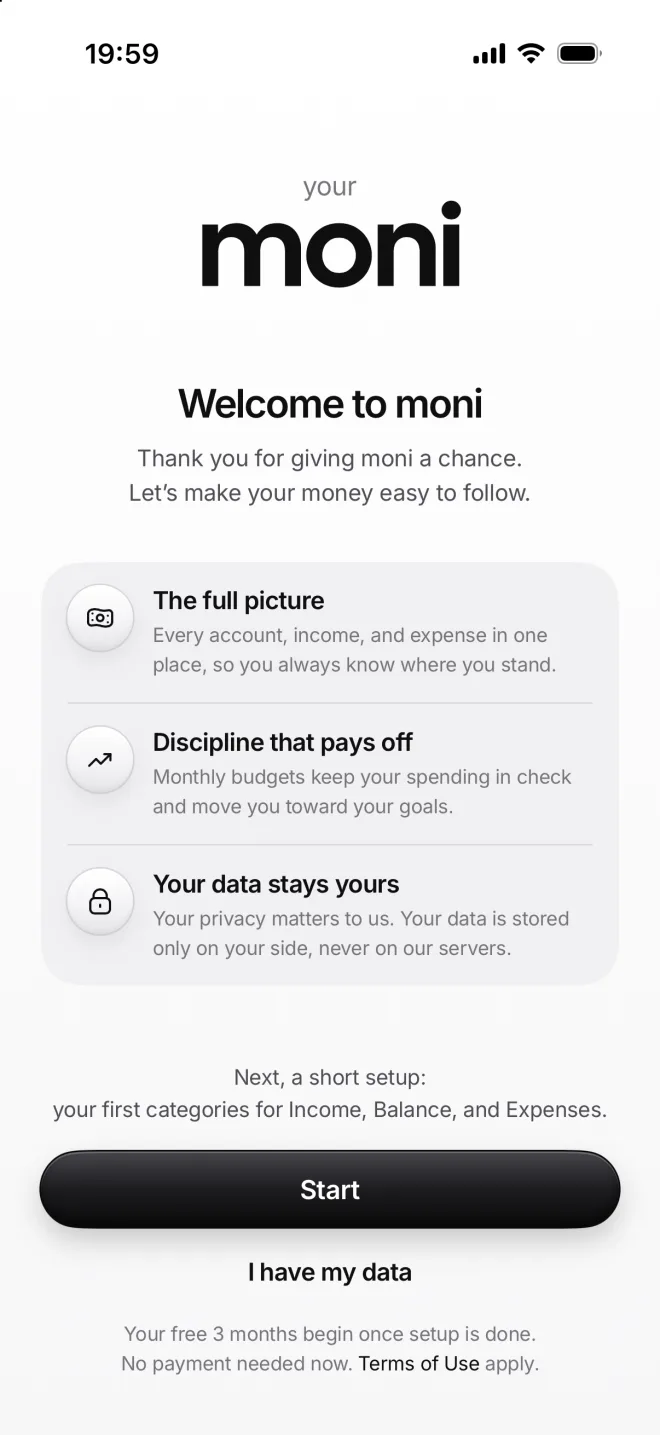
Make a moni backup on your old iPhone and keep it in iCloud Drive. On the new one, install moni and tap I have my data.
-
Choose the file
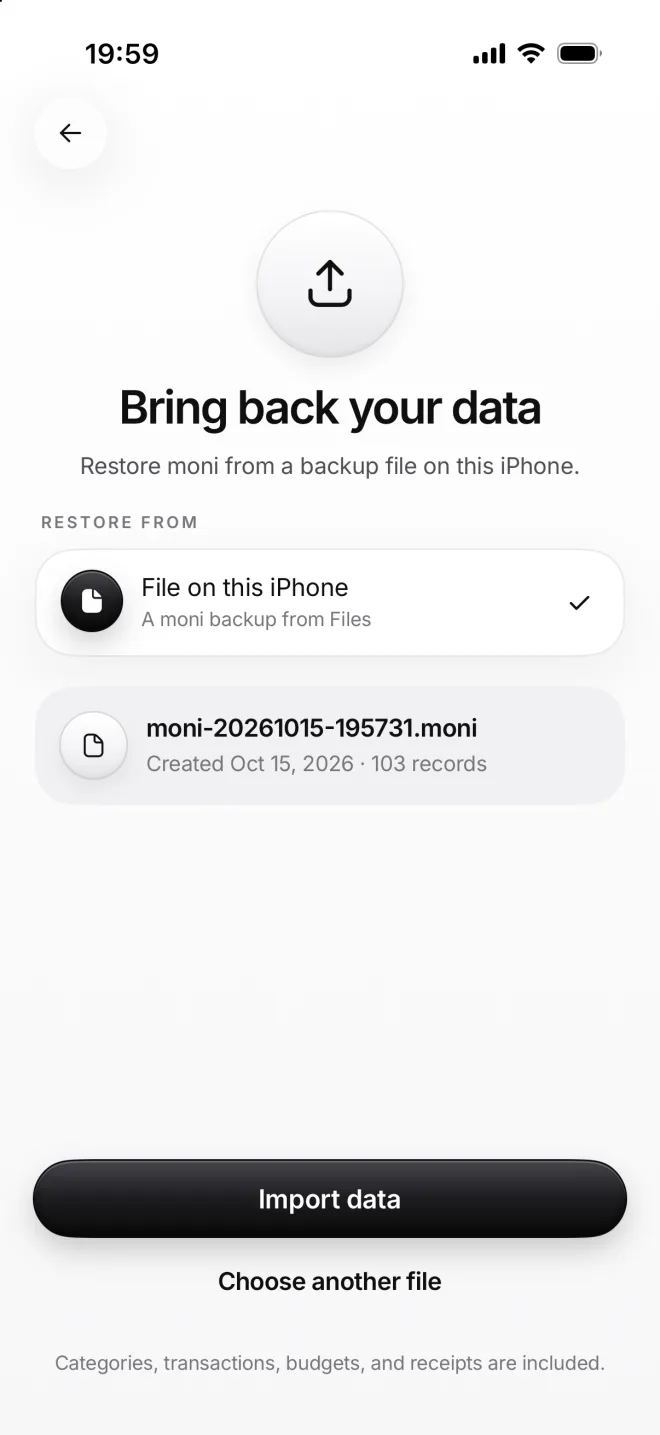
Tap Choose file and find your backup. moni shows when it was made and how much is in it: 103 records from October 15.
-
Welcome back
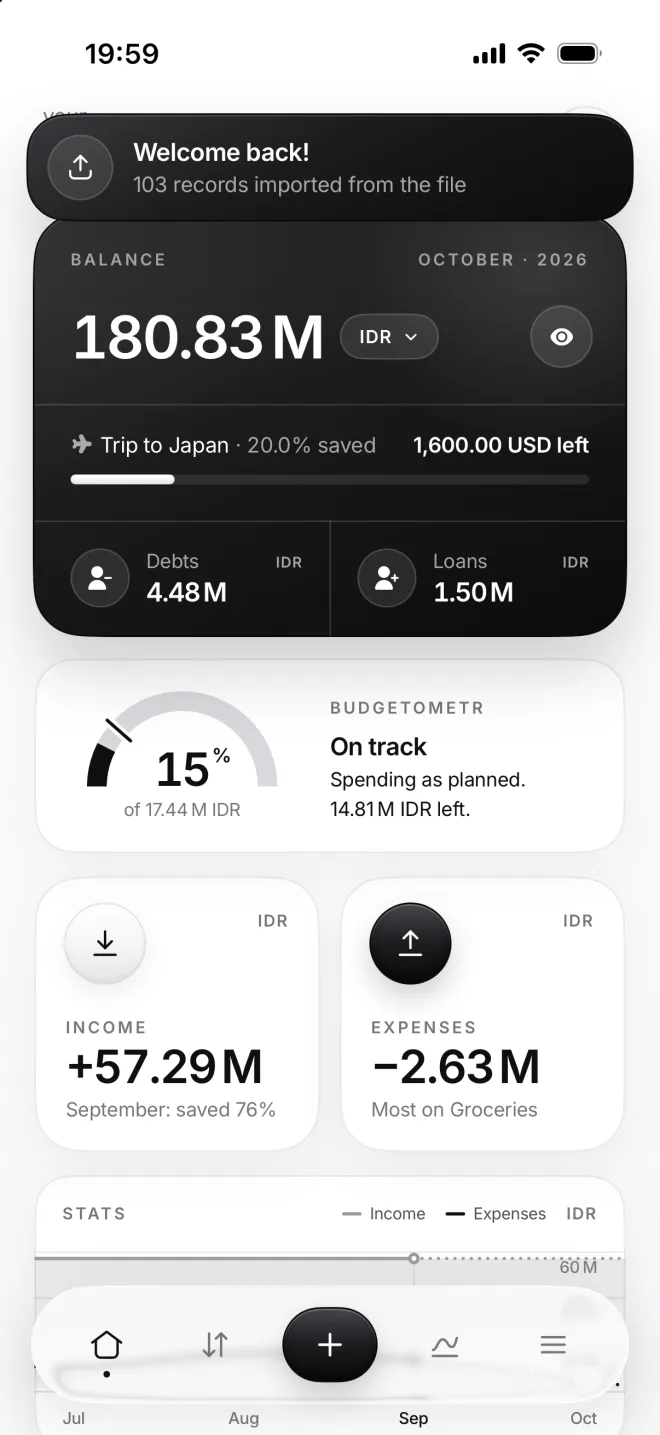
Tap Import data, and moni skips the setup: your categories, transactions, budgets and receipts are right where you left them.
If something goes wrong
Do I get new free months?
No. The free months come once per Apple Account, and Apple keeps count. On a new iPhone with the same account, your plan and its free days simply go on.
Where is my plan?
Plans belong to your Apple Account. Sign in with the same one, open your plan in Menu, and tap Restore purchases if it doesn’t show up there all by itself.
Without a backup file
On paid plans, sign in with the same Apple Account, and moni gets your data from your own iCloud by itself. A backup file works on every plan, at any time.
moni is already set up
Open Menu, then Export & import, and Import. Choose Replace to take everything from the file, or Merge to add only what’s new to the data you already have.