Find your way around
moni has four tabs and one button in the middle of the tab bar. Here is what each of them shows, so you always know where to look for what you need.
-
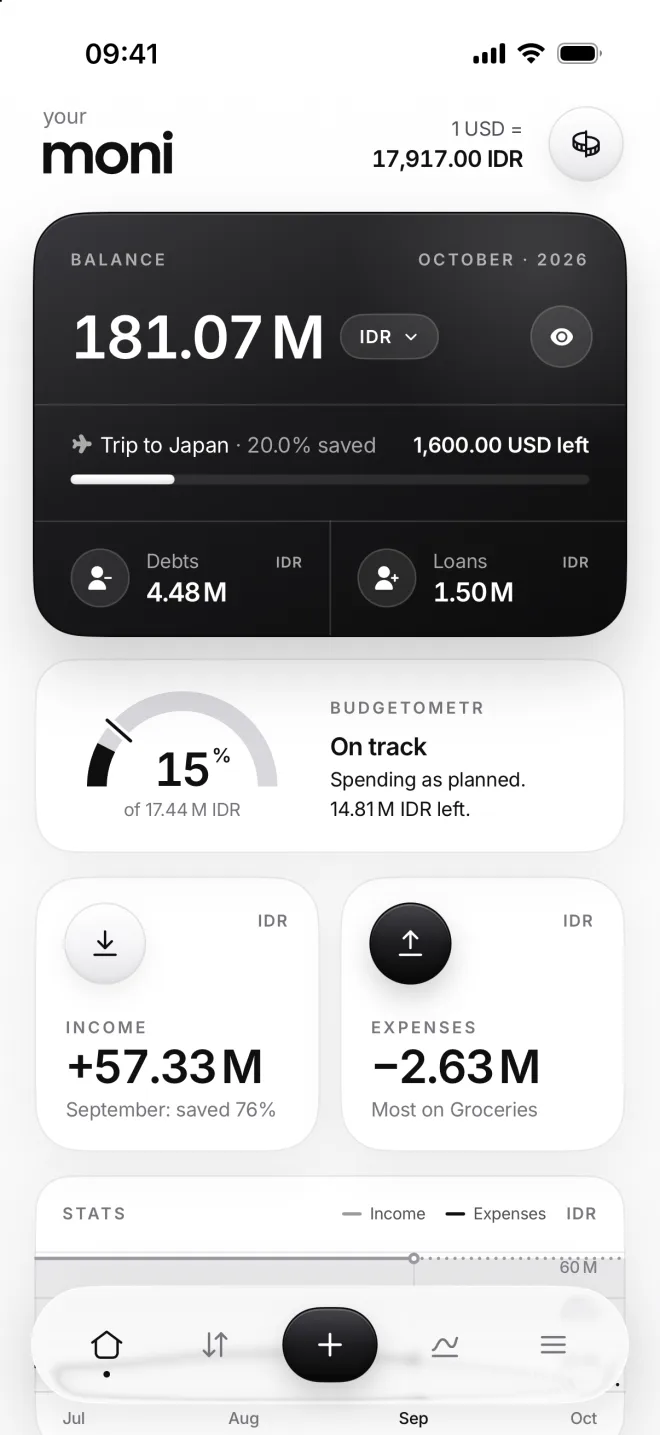
Home: your money at a glance
Home sums it all up: your balance and the Budgetometr, this month’s income and expenses, a chart and the latest from Flow.
Right after setup it’s all zeros; here it is three months on. Tap a card to open its page, or the rate at the top for Exchange rates.
-
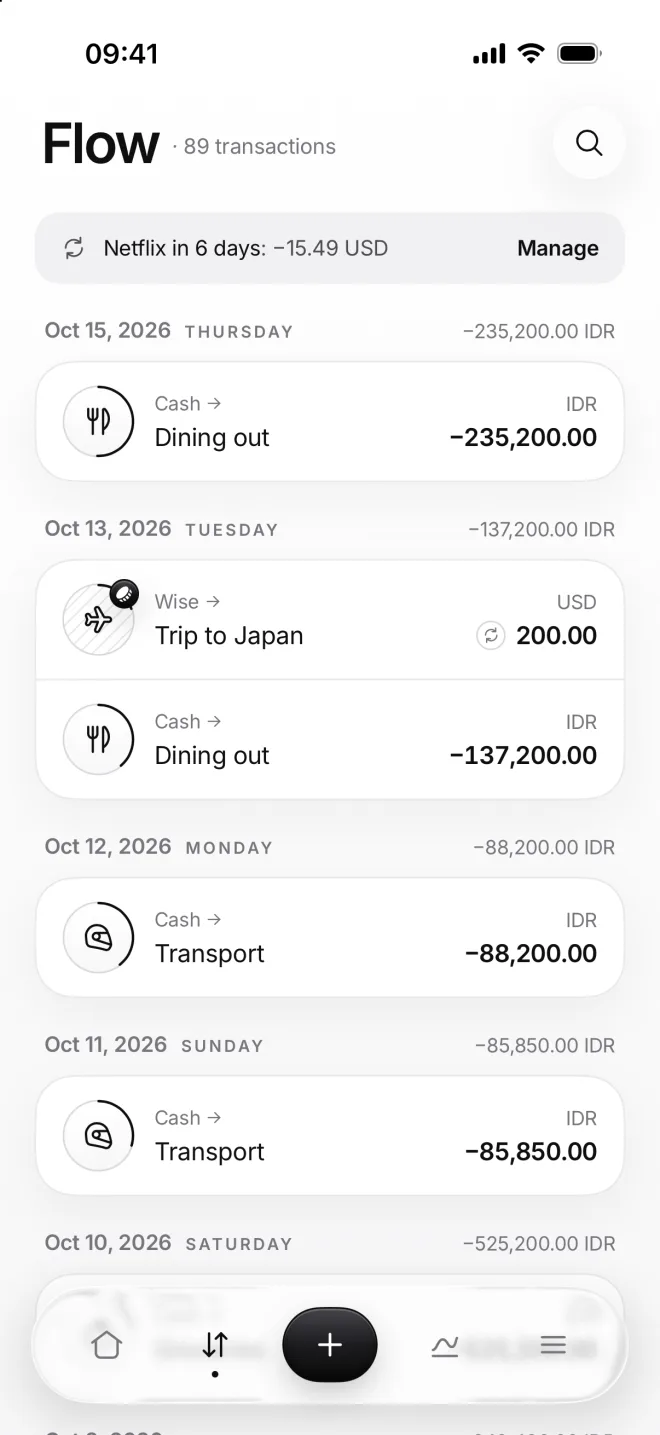
Flow: every transaction
Flow lists all your transactions day by day, the newest first, with each day’s total on the right. Before the first one it’s empty.
Here it is after three months. The magnifier at the top finds a transaction by category or comment; swipe one left to delete it.
-
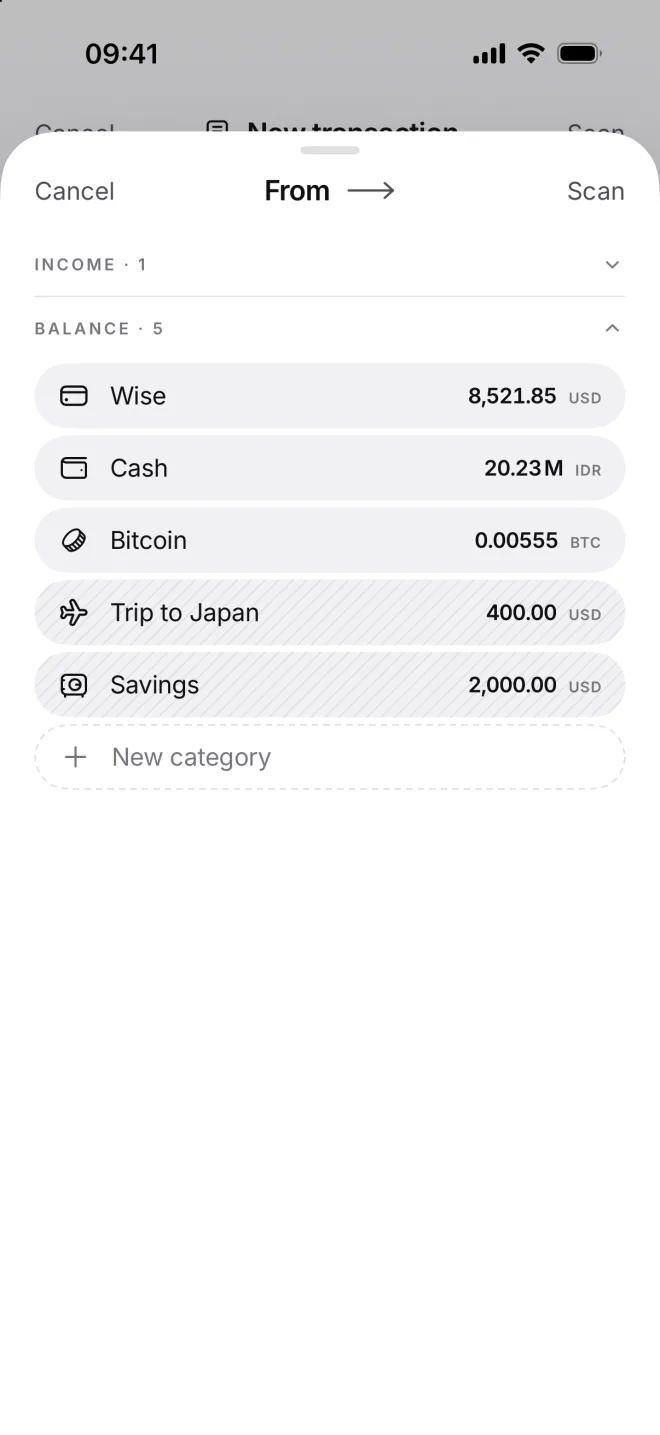
The + adds a transaction
The black + in the middle opens a new transaction from any tab. First pick where the money comes from, then where it goes.
Scan in the top corner reads a paper receipt for you instead. The next lesson explains how moni counts each transaction.
-
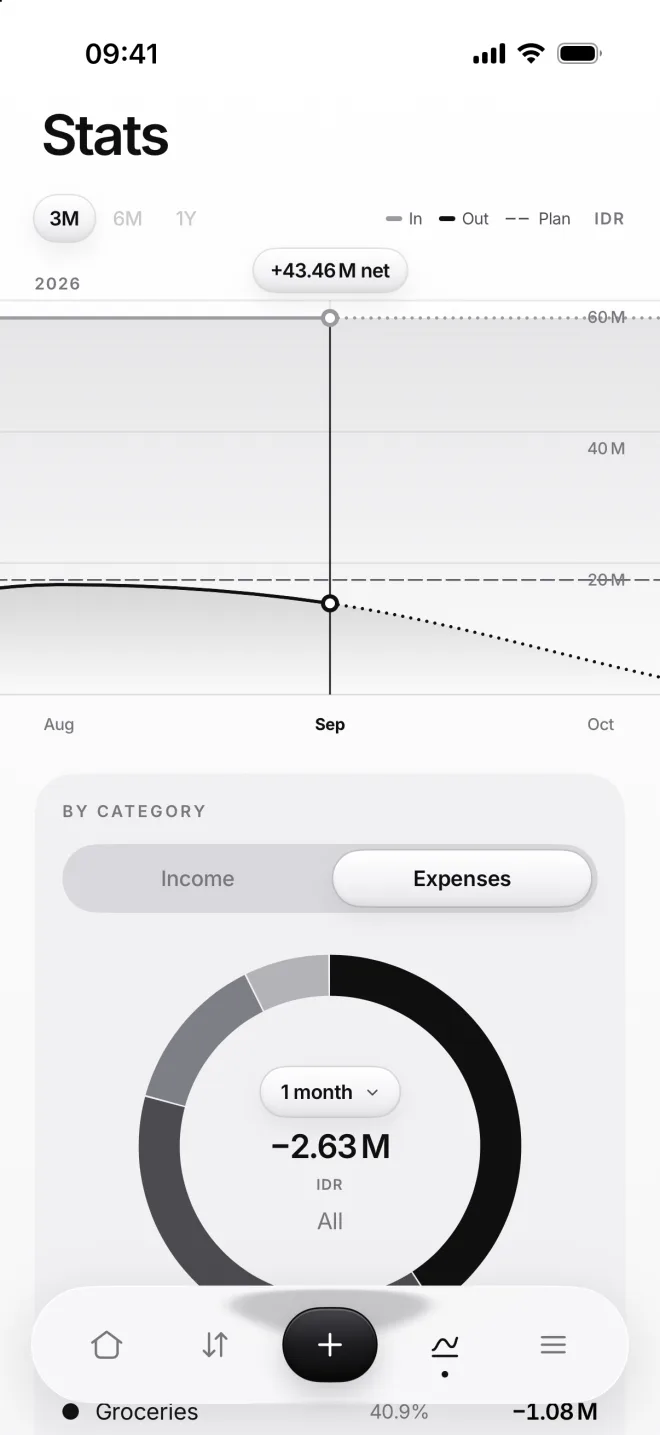
Stats: your months side by side
Stats compares your months: money in, money out and where it went. It starts drawing as soon as your first month is over.
Here are three months of it: the chart, then your categories in a ring and every month’s result. Lesson 24 explains all of it.
-
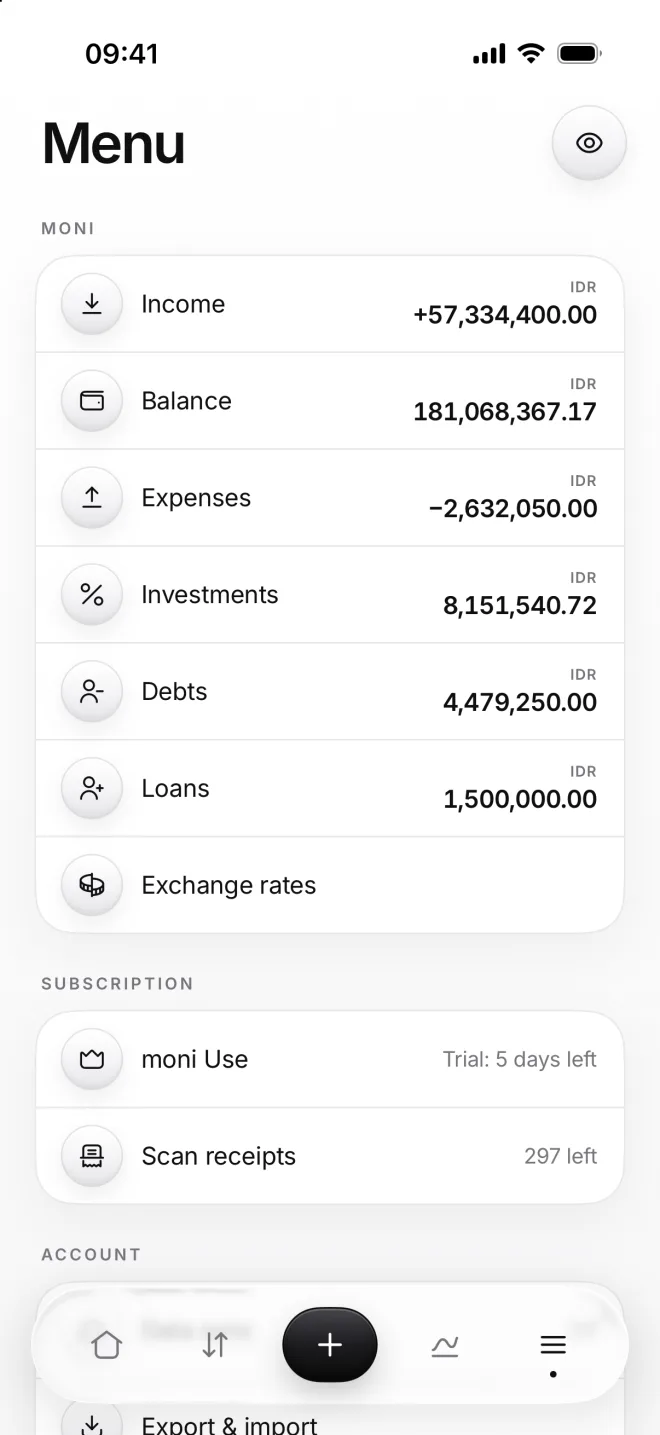
Menu: everything else
Menu lists your sections with their totals, Exchange rates and your plan. The eye at the top hides every amount in moni at once.
Your plan, moni Use, shows its free days left: five here. Further down: Settings, Export & import, Help & Support and more.
-
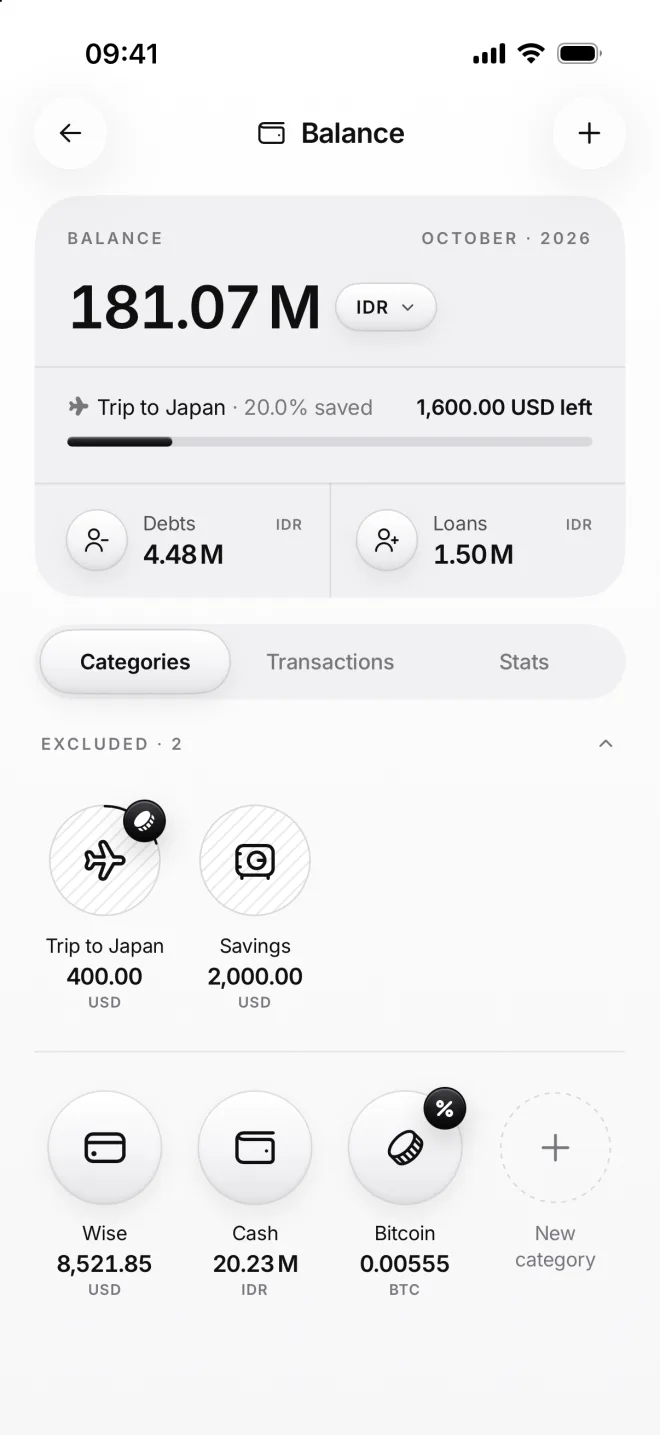
Every section has its own page
Tap Income, Balance or Expenses on Home or in Menu. Each page has its total, your categories, their transactions and Stats.
The + at the top adds a transaction from right here, and the last tile, New category, adds another category to this section.