Save for a goal with the Piggy bank

The Piggy bank is a balance category for one goal at a time. Name it, set the amount you need, and watch it come closer with every transfer you make.

Lesson 22 of 32 2 min
  1. Give it a goal

    Open the Piggy bank on the Balance page and tap Edit Piggy bank. Rename it, like Trip to Japan, and pick an icon that fits.

    Type the whole amount you need, 2,000 dollars, in total. Its money is always left out of your balance, so you won’t spend it.
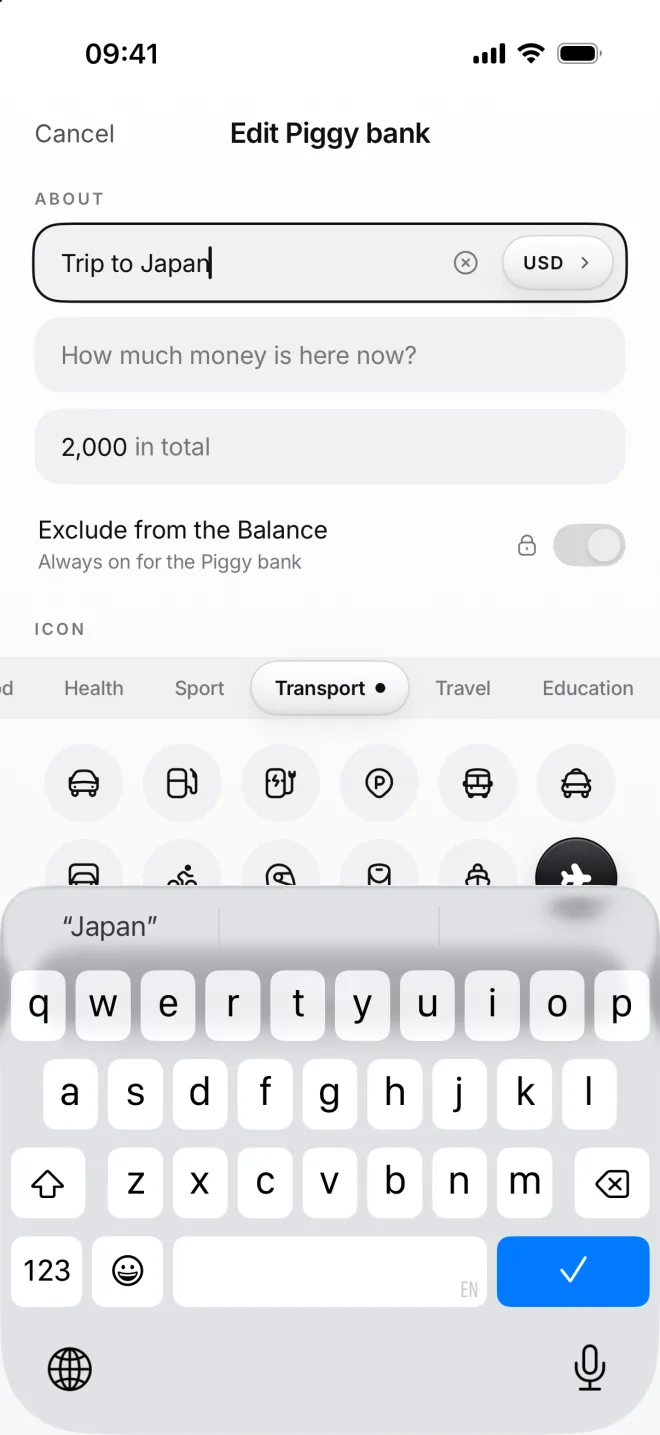
    Edit Piggy bank: Trip to Japan in US dollars, 2,000 in total, the airplane icon
  2. Put money in

    Saving is a transfer from Wise to Trip to Japan. Make it repeat monthly, and moni adds 200 dollars on the 13th by itself.
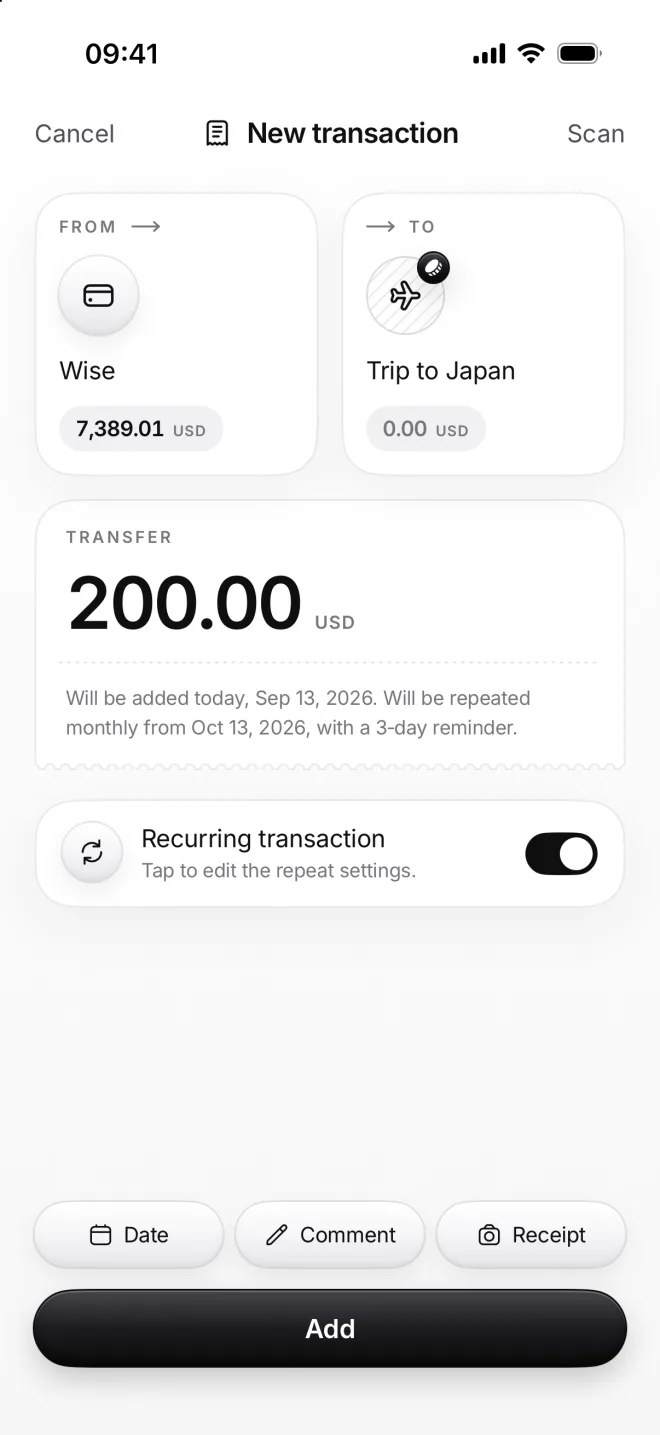
    New transaction from Wise to Trip to Japan: 200.00 dollars, repeated monthly from October 13
  3. Watch it fill

    The page shows what’s saved and what’s left: 10% of the goal, 1,800 dollars to go. The strip on top shows the next transfer.
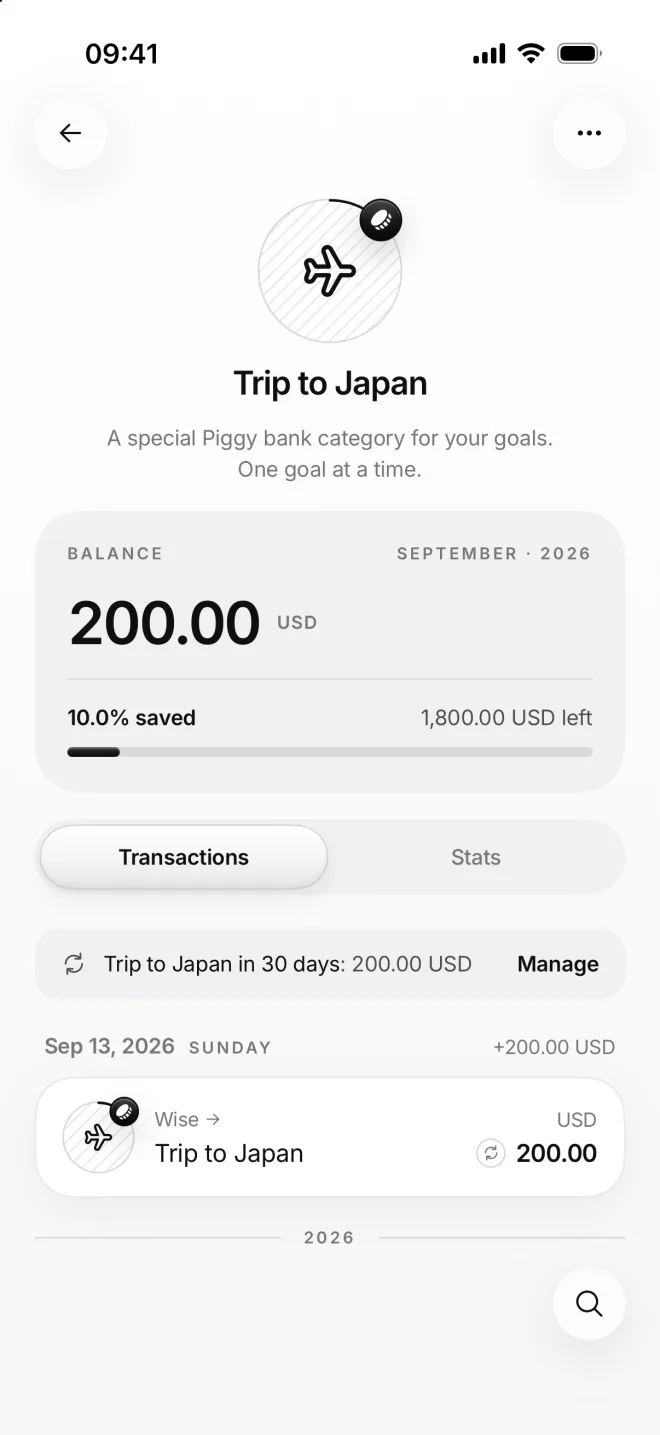
    The Trip to Japan page: 200.00 dollars, 10.0% saved, 1,800.00 USD left, the next transfer in 30 days
  4. On Home too

    Home shows your goal under the balance, with its bar. Tap it to open the Piggy bank, or hide it in Settings, Display on Home.
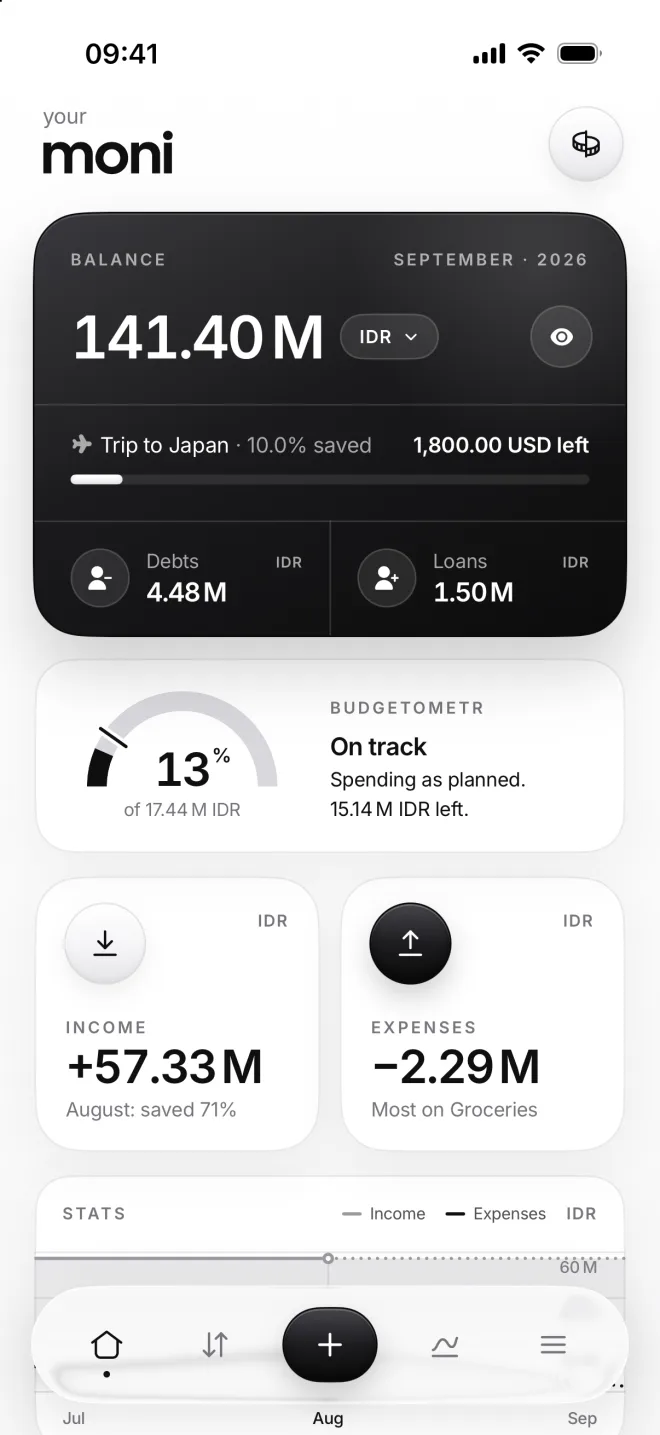
    Home with Trip to Japan under the balance: 10.0% saved, 1,800.00 USD left

If something goes wrong

Can I have two goals?
One goal at a time keeps you focused. When it’s reached and its money is spent, the Piggy bank starts over, and you can give it the name of your next goal.
I bought what I saved for
Add an expense from the Piggy bank, like Trip to Japan to Travel. Once it’s empty, it goes back to its own name and its icon, and it’s all ready for your next goal.
Can I delete the Piggy bank?
No, it’s always there, and it costs nothing while it’s empty. You can hide its line on Home whenever you like: open Settings and look under Display on Home.