Edit, reorder or delete a category
Your categories aren’t set in stone. Rename one, give it a new icon or currency, move it to its own place in the grid, or remove it when you’re done.
-
Open the category’s menu
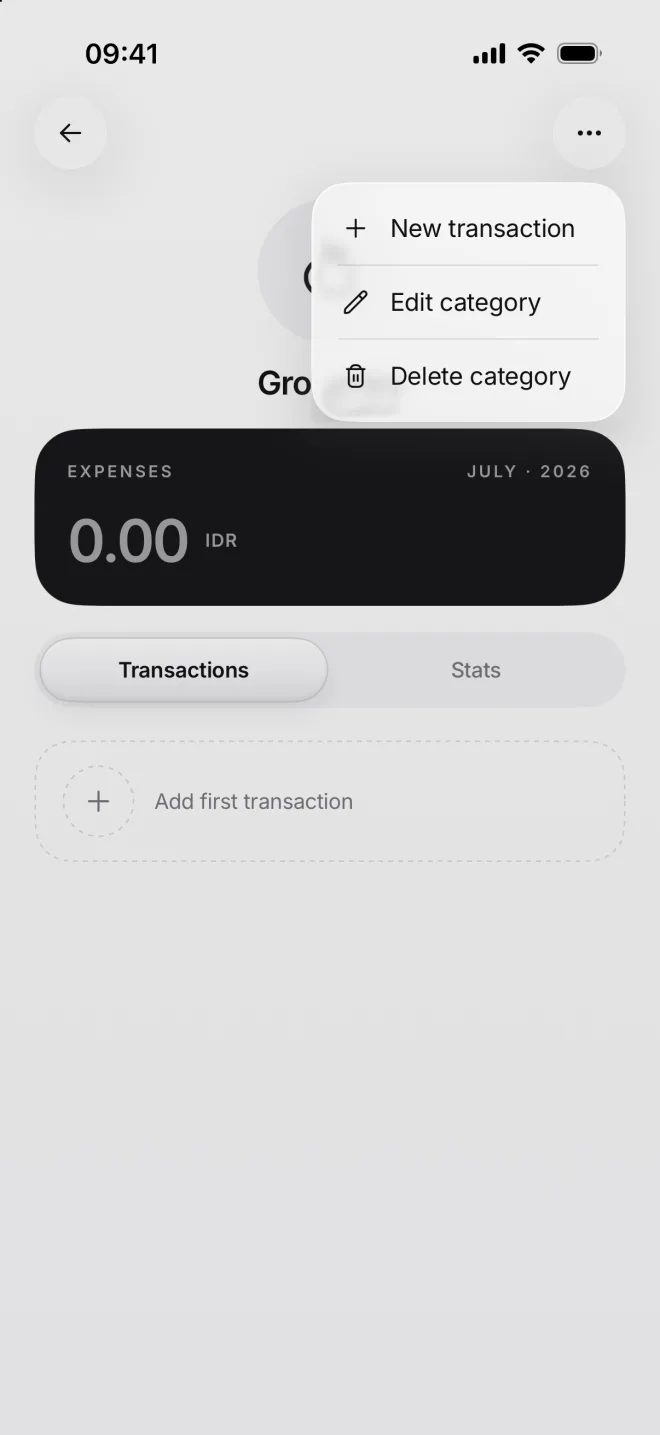
Tap a category to open its page, then ··· at the top right. Its menu has New transaction, Edit category and Delete category.
A tap on the big icon in the middle of the page opens Edit category too: the quickest way to change a name or an icon.
-
Change what you need
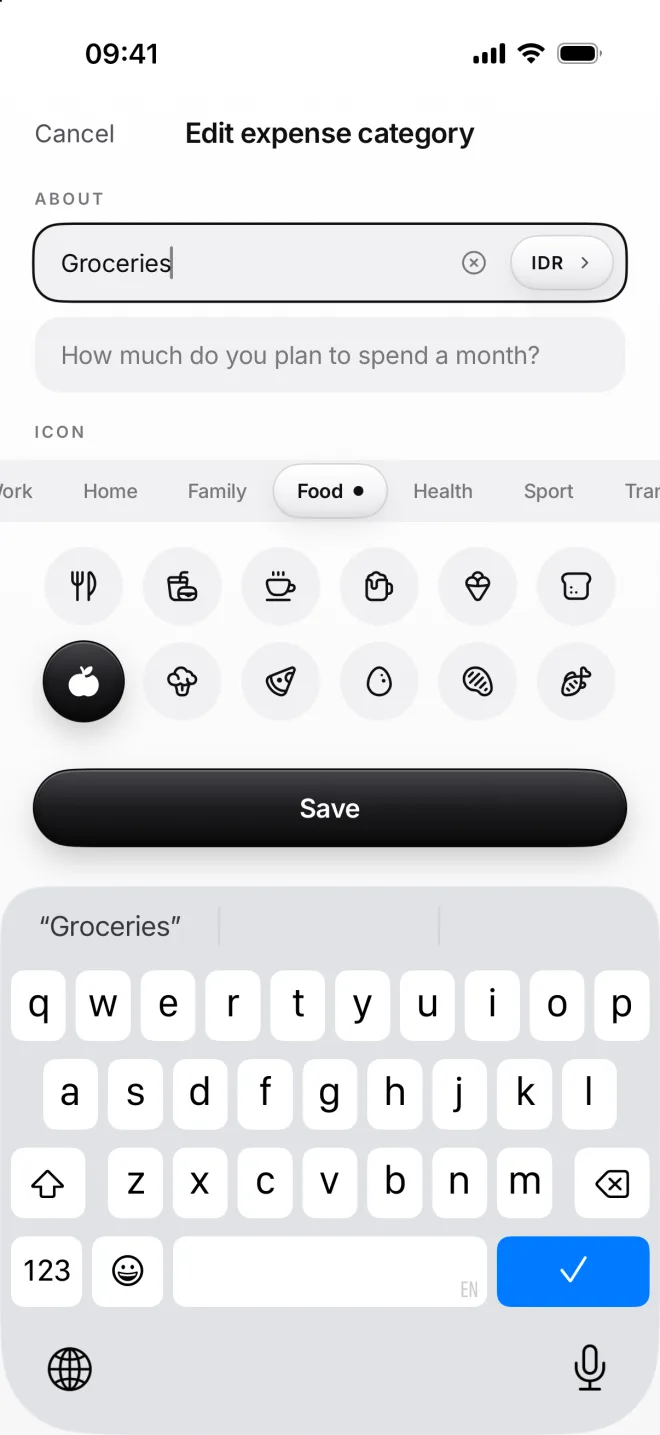
Edit category is the form you created it with: name, currency, budget, icon. Tap Save, and moni updates it everywhere at once.
Past transactions keep their amounts. Renaming is safe: every transaction follows its category, wherever it shows up.
-
Move the tiles around
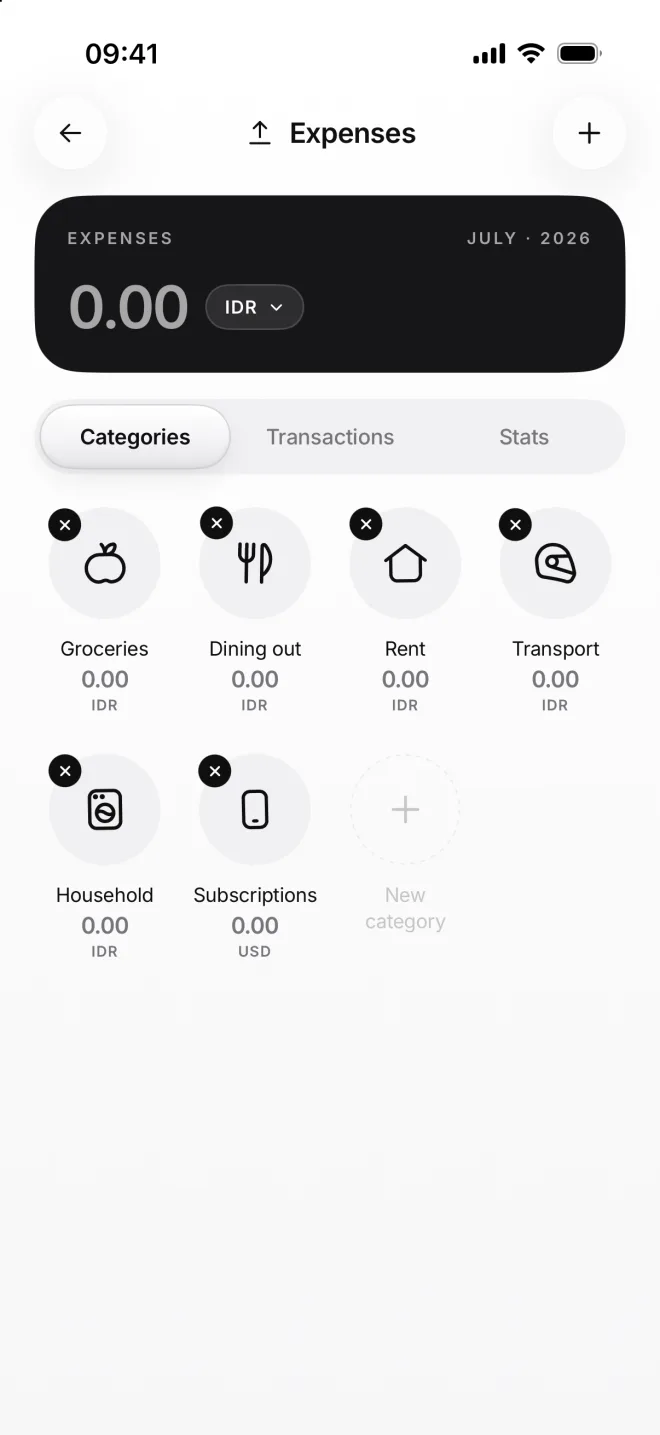
Press and hold any tile on a section’s page. The tiles start to jiggle, like apps on your Home Screen: drag one to its new place.
Tap anywhere outside the tiles to finish. The order you choose here is also the order of these categories in the From and To lists.
-
Delete a category
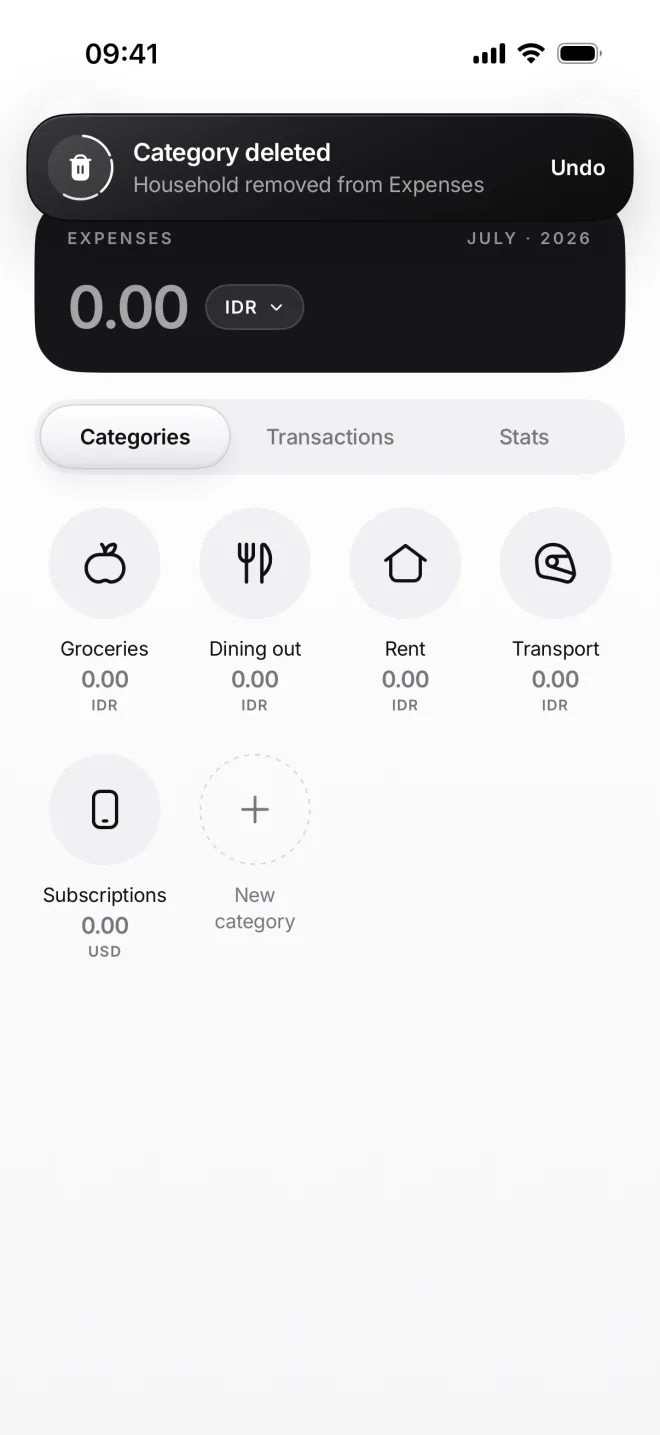
While they jiggle, tap the cross on a tile, or Delete category in its menu. A category without any transactions goes at once.
A banner with Undo shows up for five seconds. If the category has transactions, moni first asks what to do with them.