Export to a spreadsheet
Need your transactions in Numbers, Excel or Google Sheets? moni exports them as a CSV table, one row for each transaction, ready for your own reports.
-
Choose CSV
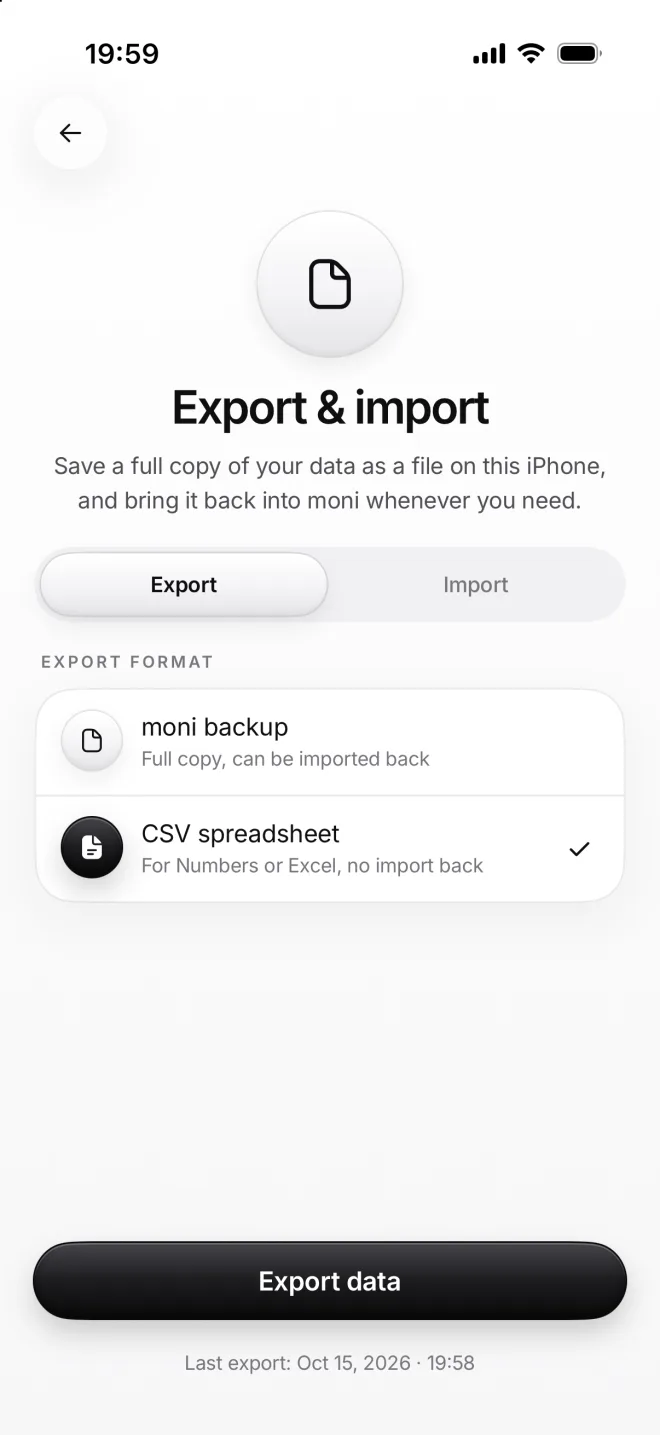
In Export & import, pick CSV spreadsheet and tap Export data. Then save the file wherever you like, just as with a backup.
-
Open the table
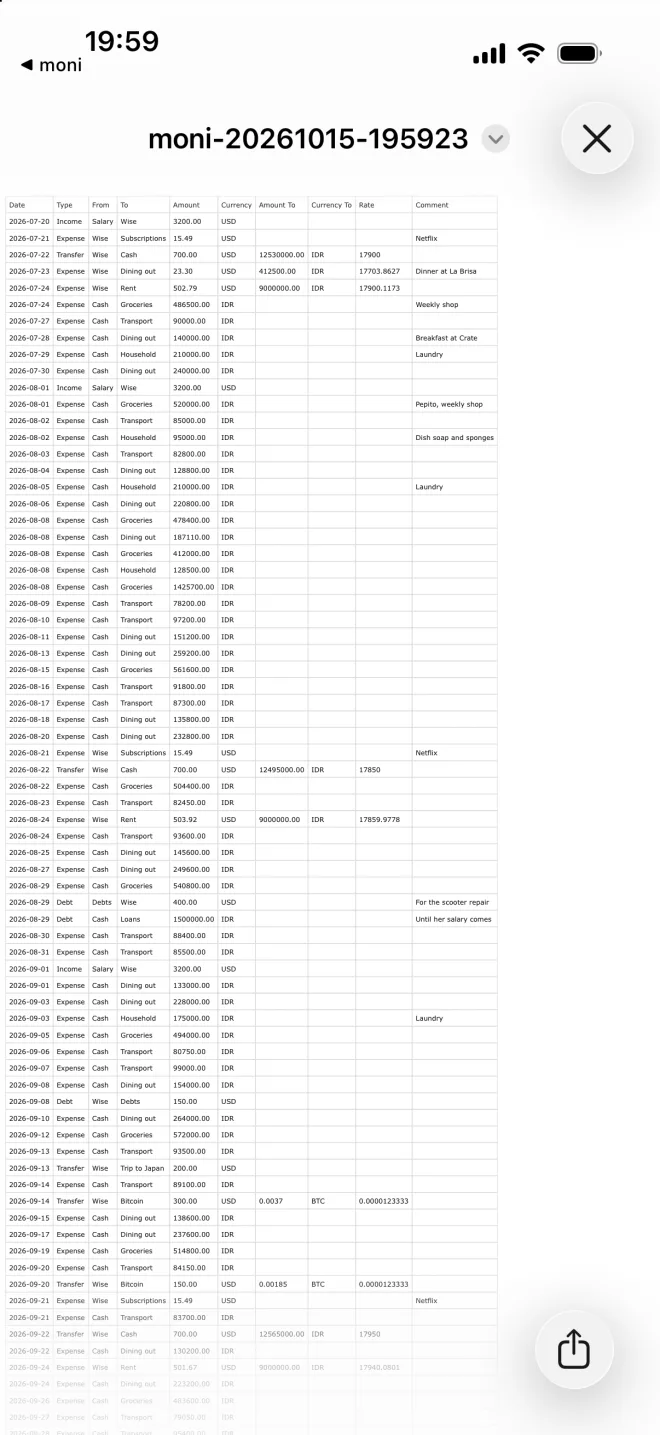
Each row is one transaction: its date, type, from, to, amount and currency, the second amount with its rate, and your comment.
If something goes wrong
Can I import the CSV back?
No: a table edited by hand can quietly break its dates and amounts on the way. To bring your data back into moni, always use a moni backup file instead of it.
Excel reads the numbers wrong
If your Excel uses a comma for decimals, open the file through Data, From Text/CSV, and choose a dot as the decimal sign. Then every number reads just right.
My receipts aren’t there
A table can’t hold any photos, so the CSV has none at all. Your receipts travel with a moni backup file instead, as long as you keep Full export on when you make it.
A category I deleted shows up
Transactions of a deleted category keep its name in the table, marked as deleted, so that every sum in your spreadsheet still adds up just right, down to the cent.