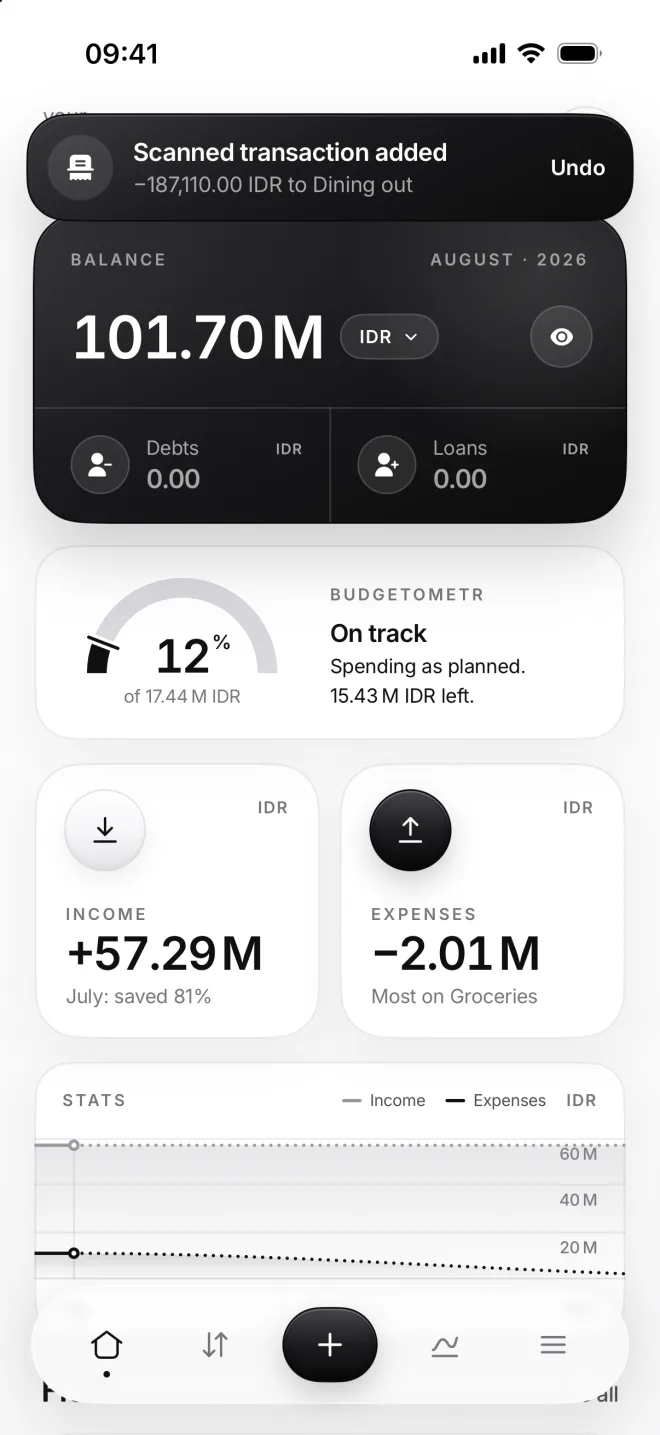
Scan a receipt
Take a photo of a receipt, and moni reads the shop, the day and the total, picks the category and the account it’s paid from, and lays out a ready transaction.
-
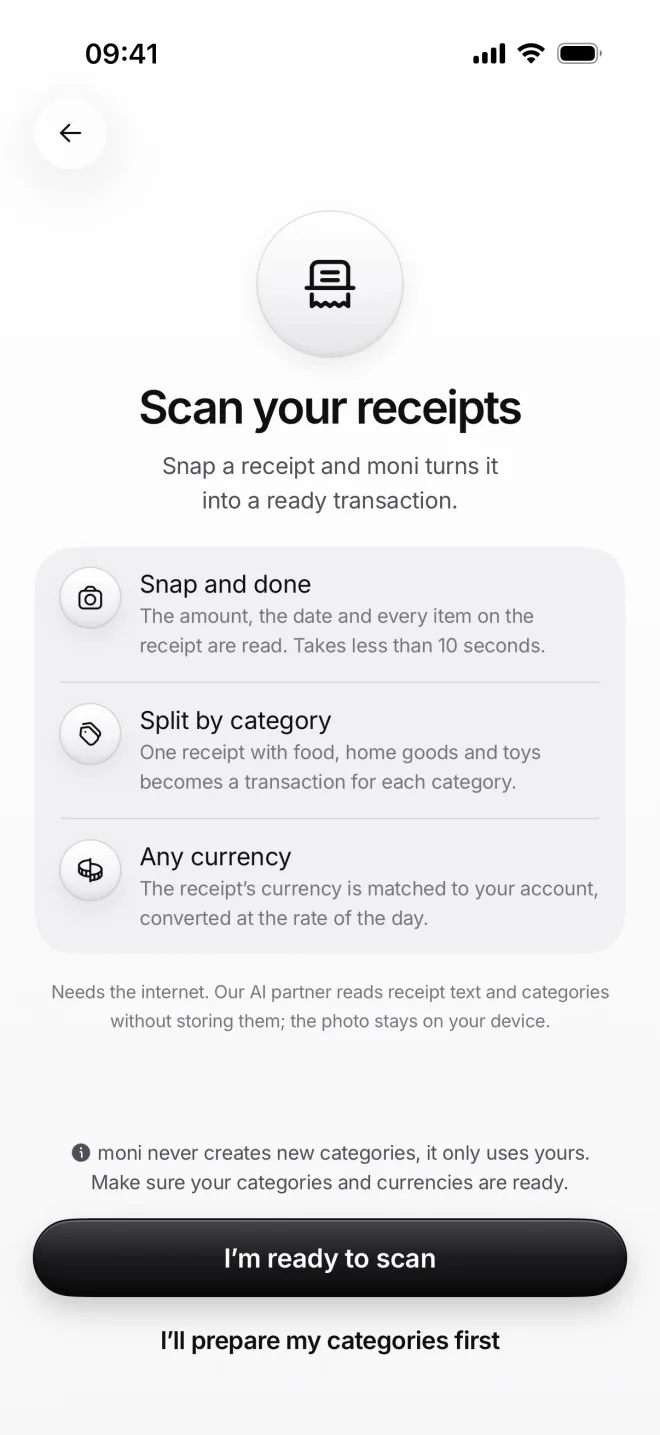
Open the scanner
Open Scan from a new transaction, a long press on moni’s icon or Control Center. The first time, moni tells you what it reads.
Only the text goes to our AI partner, and it isn’t stored; the photo stays on your iPhone. moni only uses categories you have.
-
Snap the receipt
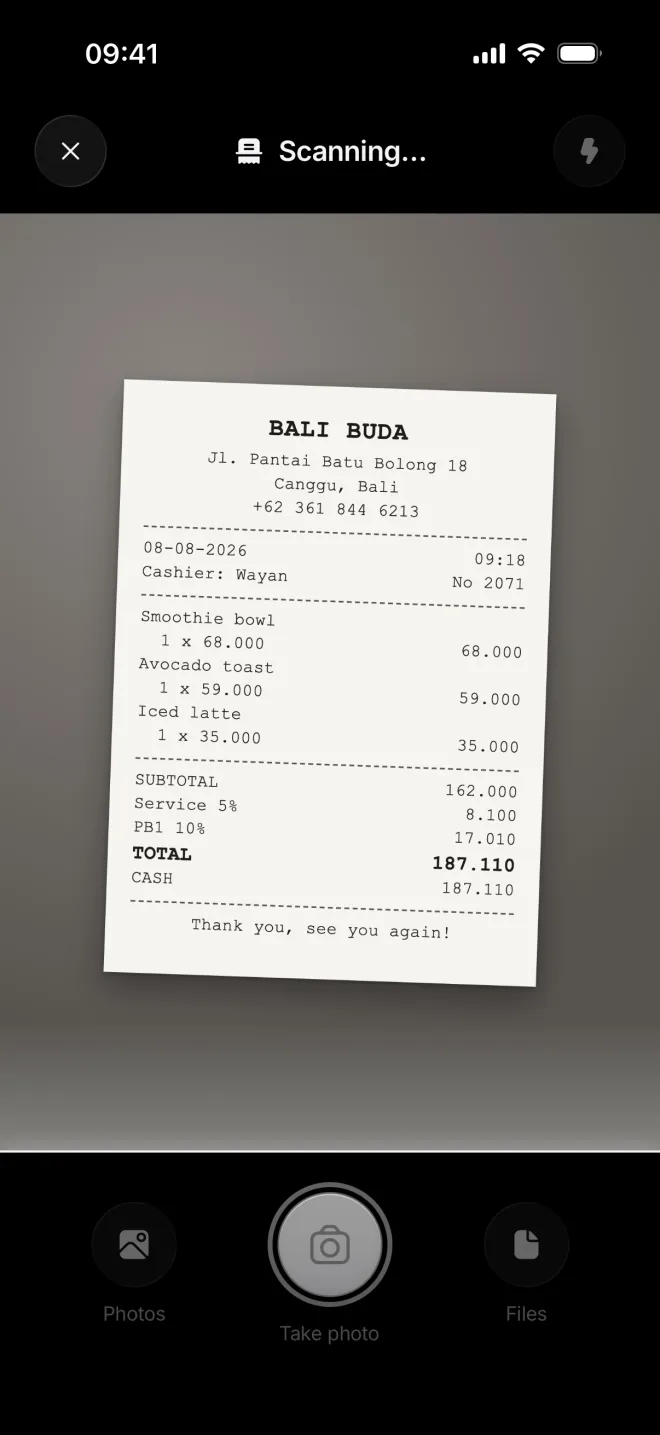
Hold your iPhone over the receipt and tap the shutter. Photos and Files pick a picture or a PDF instead, like an e-receipt.
A light sweeps over the photo while moni reads it. It takes a few seconds, most of them for the reading on the AI side.
-
Check what moni found
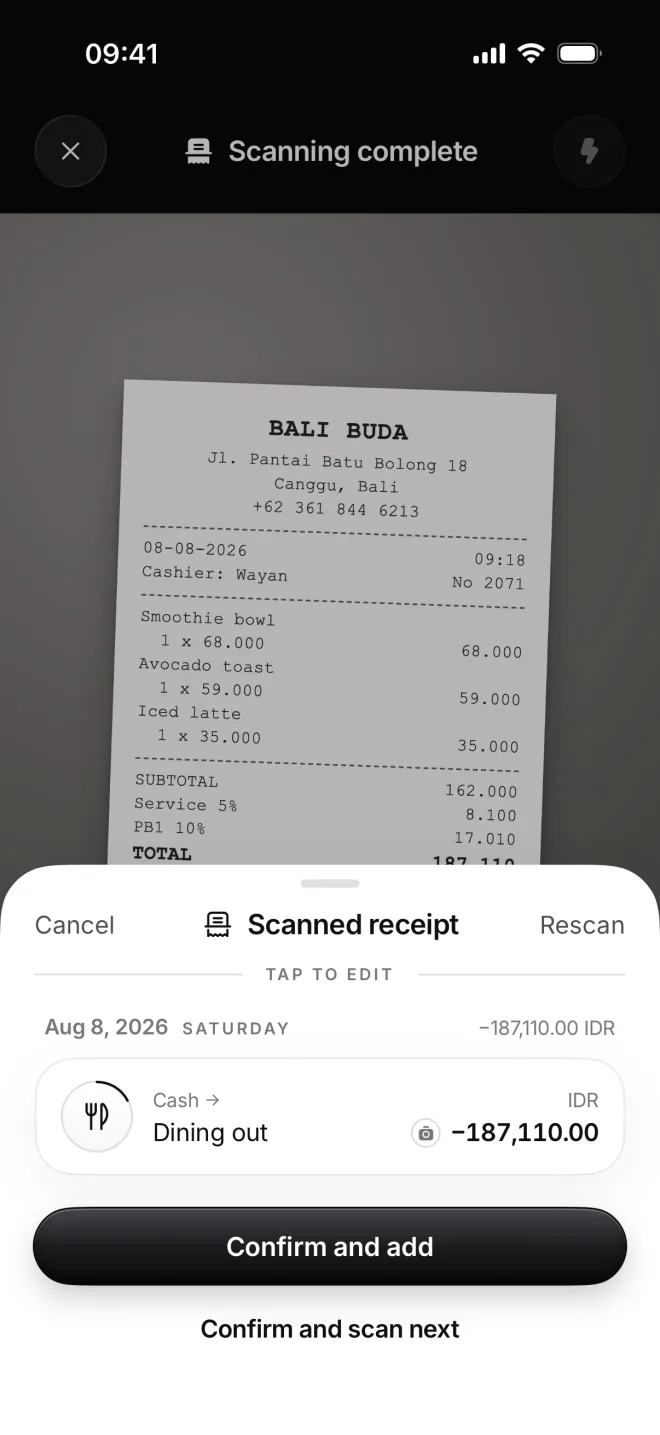
Bali Buda, August 8, 187,110 rupiahs: moni puts it into Dining out and takes the money from Cash, where it usually comes from.
Tap the row to change anything, like the category or the account. Rescan takes the photo again if something looks off.
-
Confirm and add
Confirm and add saves it with the photo and takes you back. Confirm and scan next keeps the camera open for more.
Next time at Bali Buda, moni remembers the category and the account you chose, so a scan there needs no changes at all.