Tune moni in Settings
Settings is where moni learns how you like it: which currency counts your totals, how long amounts look, what Home shows and where moni opens for you.
-
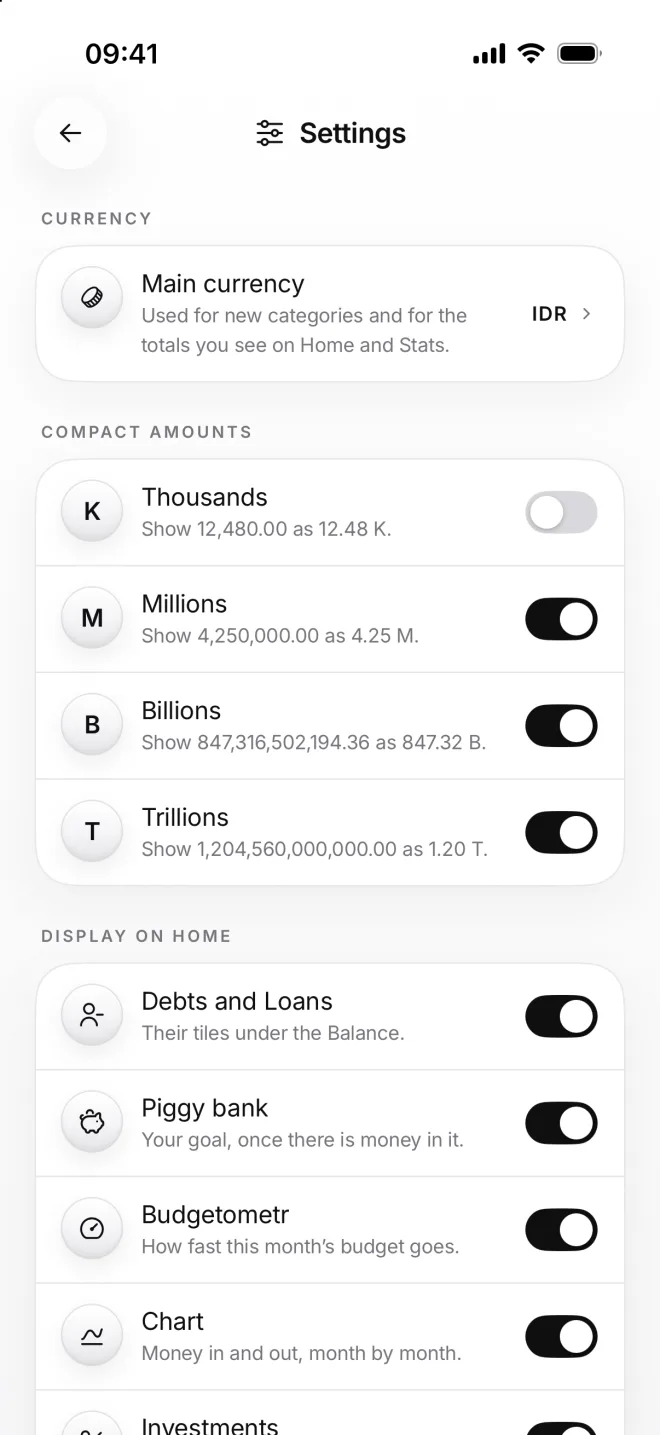
Main currency
Open Menu, then Settings. Main currency is the one moni counts your totals in: Balance, Income, Expenses, budgets and Stats.
Each category still shows its own money, like Wise in dollars. The chip next to a total switches that section to another currency.
-
Compact amounts
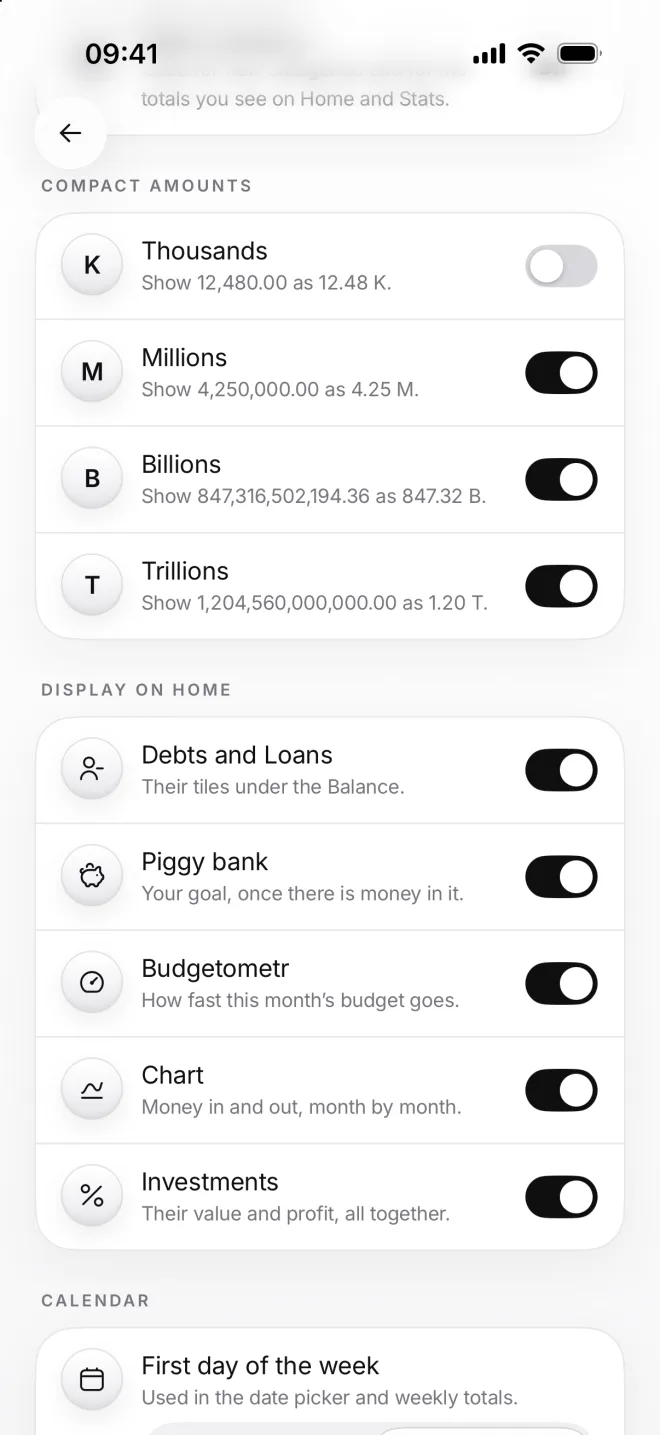
Compact amounts turn 4,250,000.00 into 4.25 M, so big sums fit at a glance. Thousands are off at first, the rest are on.
K, M, B and T read the same in every language. Menu alone shows full amounts, so you see every cent without a switch.
-
Display on Home
Display on Home picks what Home shows: Debts and Loans, the Piggy bank, the Budgetometr, the Chart and Investments.
Turn off what you don’t use, and Home gets shorter. Nothing is lost: each one keeps its own page, in Menu or on Balance.
-
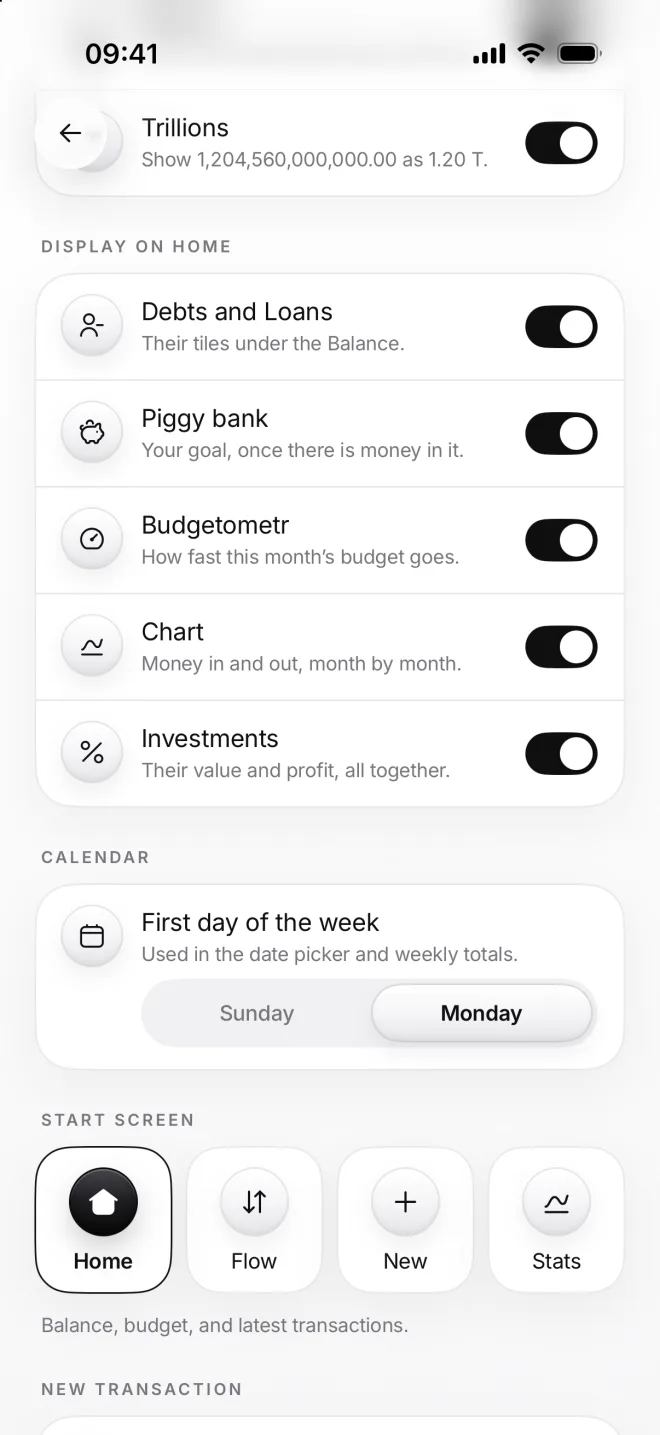
Where moni starts
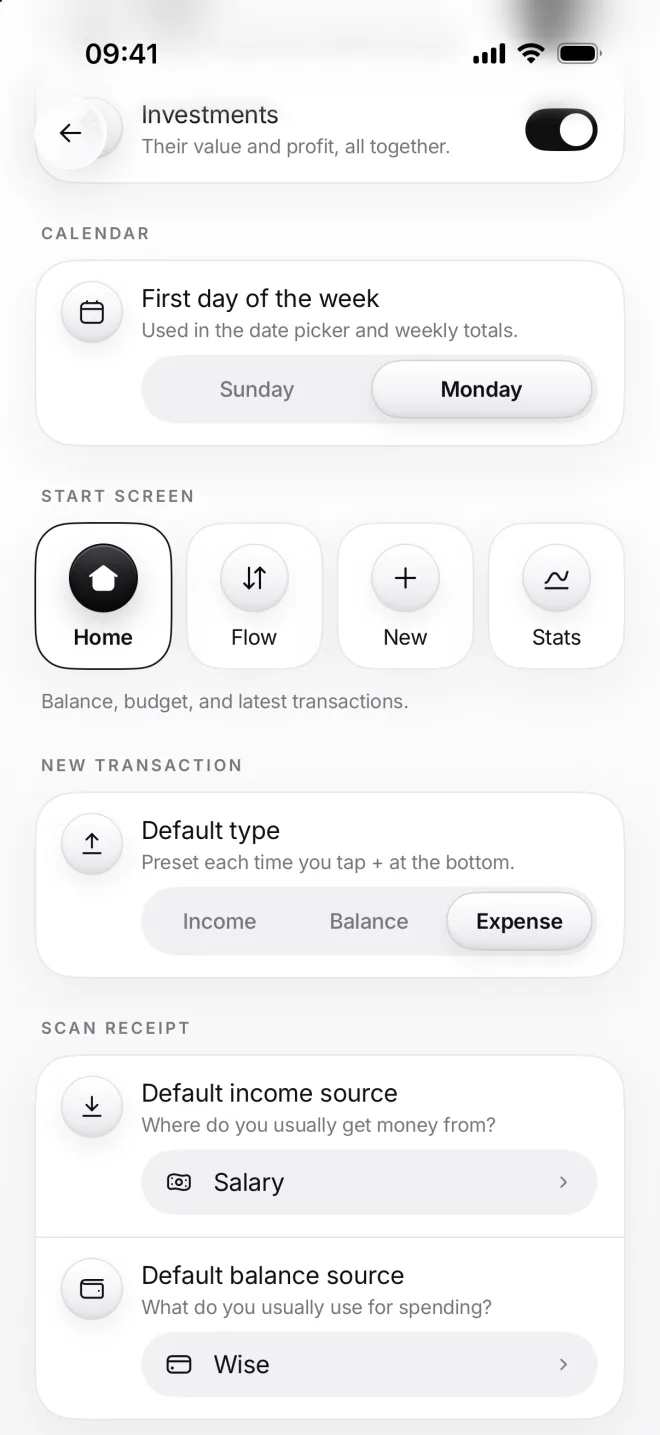
First day of the week sets your calendars. Start screen is where moni opens, and where it comes back to after an hour away.
Default type tells the + at the bottom what you add most: an expense, income, or money moved between your own accounts.
-
Scan and appearance
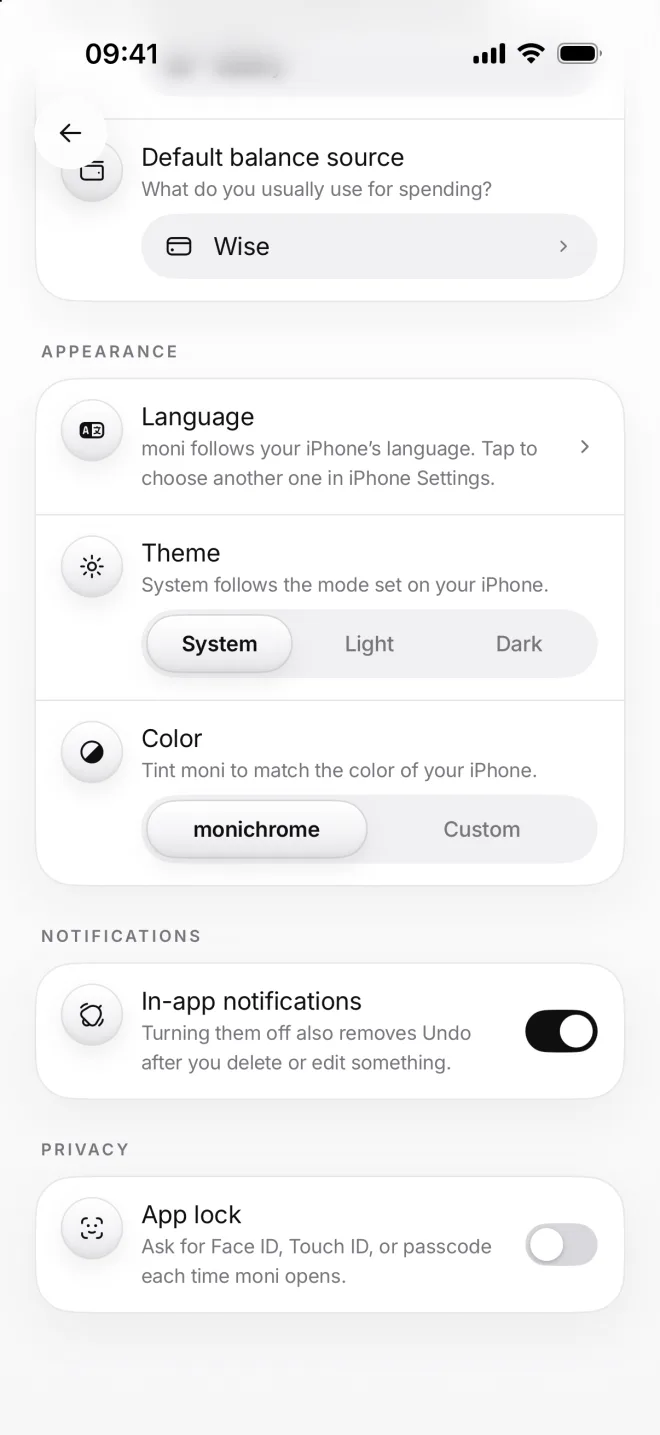
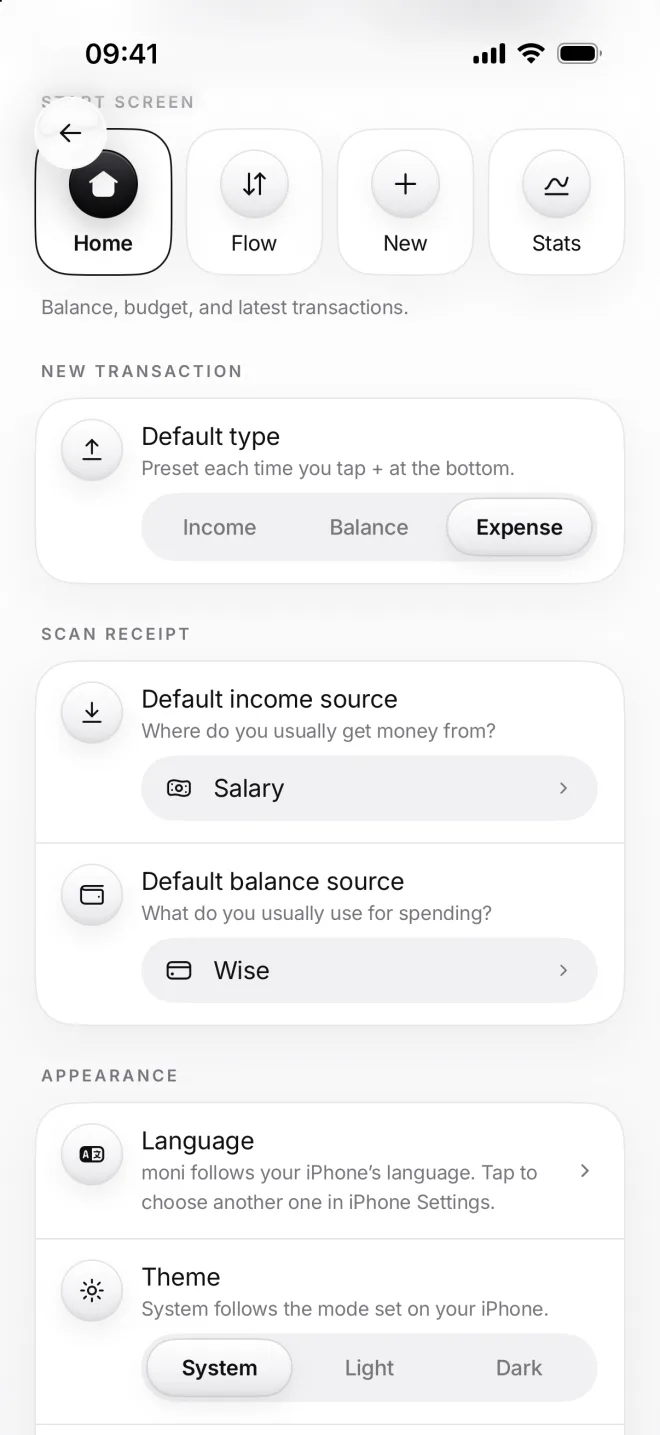
Scan receipt sets where scanned money goes until moni learns your habits: income into Salary, spending out of Wise.
Appearance holds the language, the theme and the color of moni; Make moni yours, the last lesson, shows them all to you.
-
Notifications and lock
Keep In-app notifications on: they tell you what moni has just done, and their Undo is your way back after deleting something.
App lock asks for Face ID, Touch ID or your passcode each time moni opens. Hide amounts and lock moni tells you all about it.