Find, edit or delete a transaction

Every transaction stays easy to reach. Search them by category or comment, open one to change what you need, or swipe it away if it shouldn’t be there.

Lesson 15 of 32 2 min
  1. Search

    Tap the magnifier at the top of Flow and type, like groc. moni searches category names and comments as you type.

    Matches are highlighted, and each day’s total counts only what was found. Tap Cancel to bring back your whole Flow.
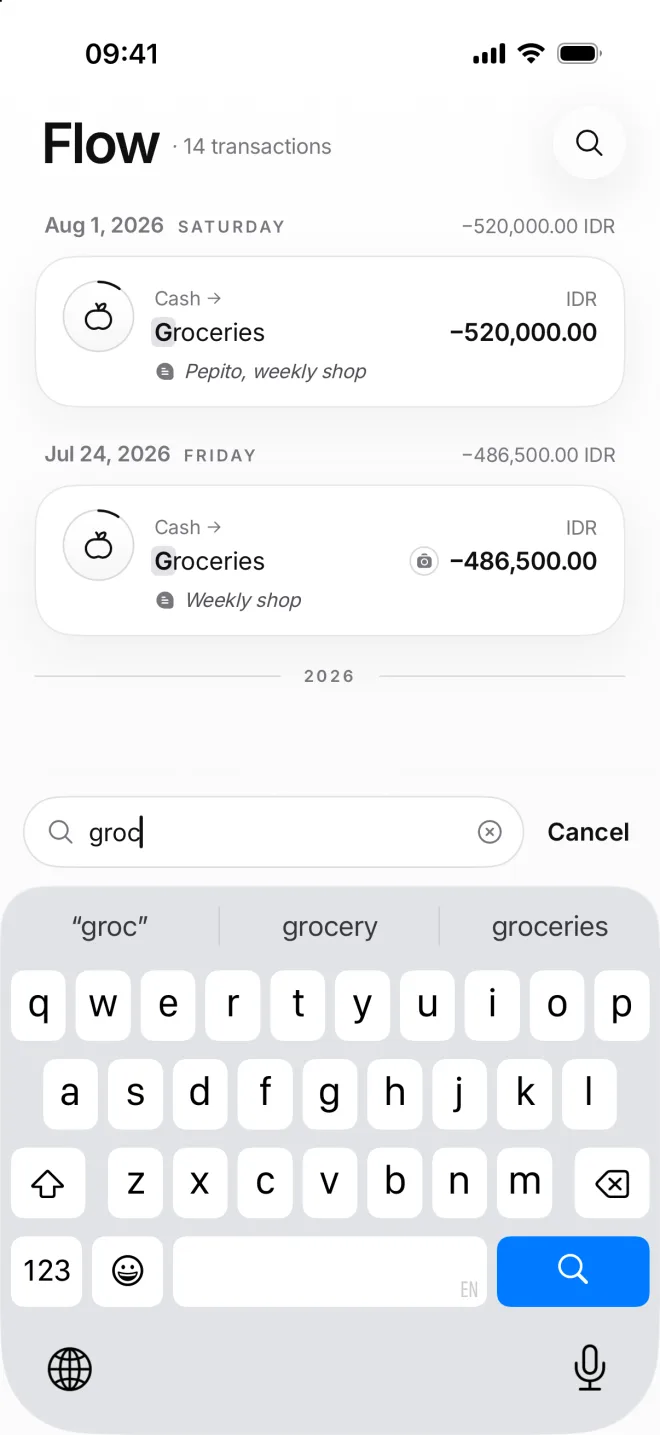
    Flow searching for groc: the grocery runs of August 1 and July 24
  2. Open and edit

    Tap a row to open it. Change the category, the amount, the day, the comment or the receipt, then tap Save at the bottom.

    Until you change something, the button says Close. Delete at the top right removes the transaction, after you confirm.
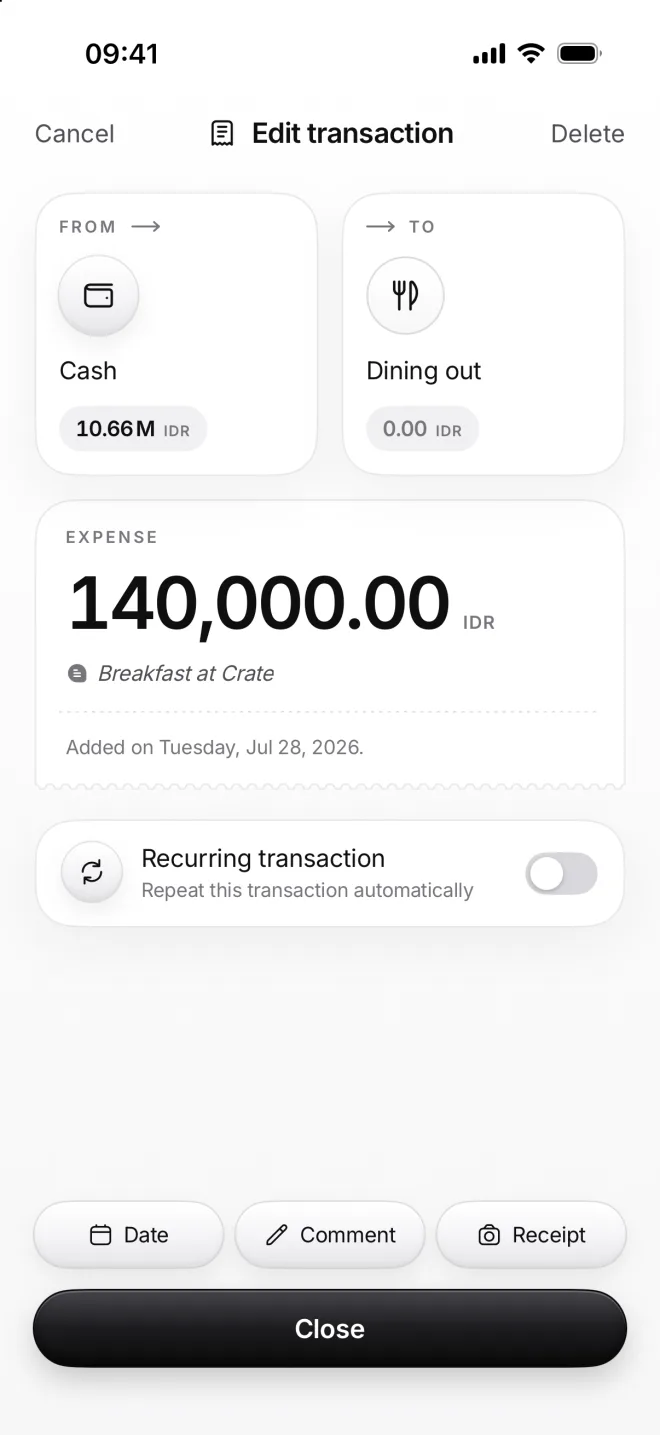
    Edit transaction from Cash to Dining out, 140,000.00 rupiahs, Breakfast at Crate, with Close
  3. Swipe to delete

    In any list, swipe a row to the left and tap Delete, or swipe it all the way across to delete it at once. Here, a grocery run.

    A banner with Undo shows up for five seconds. The money goes back where it came from, and every total updates.
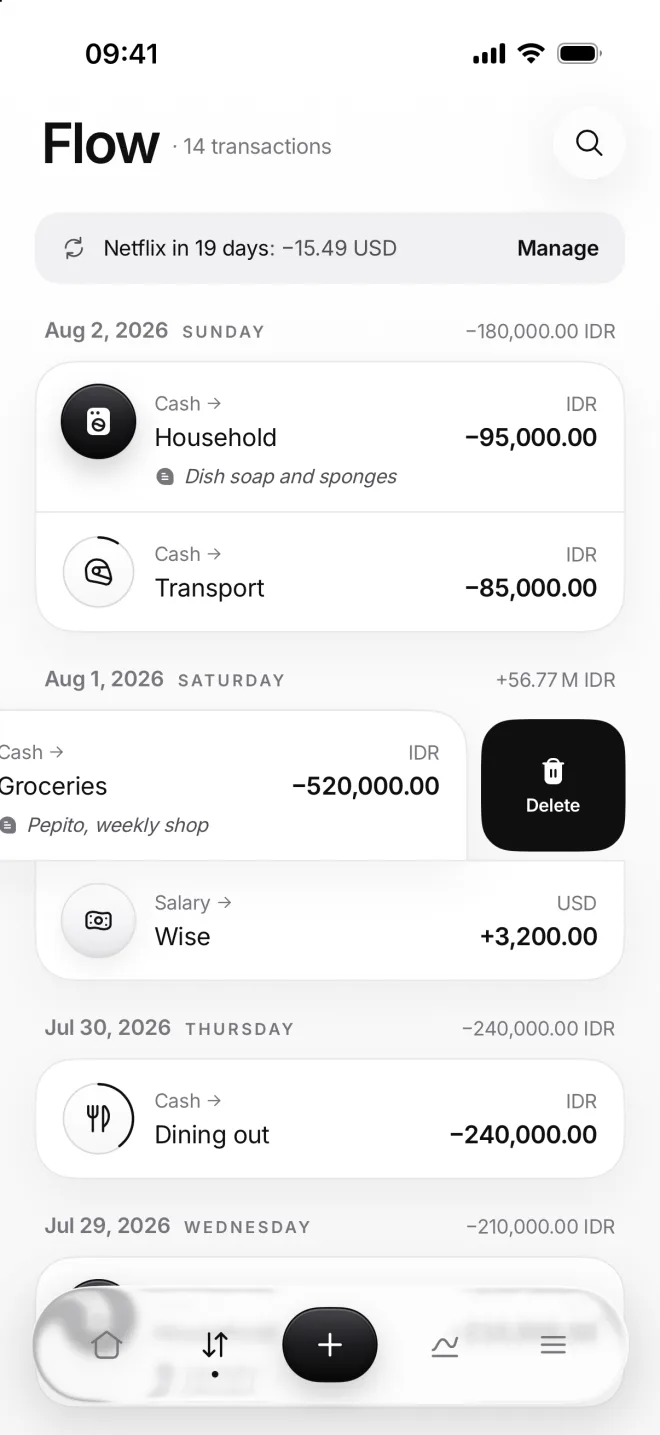
    Flow with the grocery run of August 1 swiped left, showing Delete

If something goes wrong

Nothing is found
moni searches category names and comments, not amounts. Check the spelling, try a shorter word, or open the category’s page and its Transactions tab.
I deleted the wrong one
Tap Undo in the banner while it’s still there: the transaction comes back exactly as it was. After that, add it again with the same day, amount, comment and receipt.
Search only one category
Open a section or a category, then its Transactions tab: the round magnifier at the bottom right searches only there, among that page’s own transactions.
Does editing change past totals?
Yes: editing a transaction puts it right everywhere, in its day, its month and in Stats. Each transaction keeps the rate of its own day, so others never move.