Scan a long receipt
A long receipt doesn’t fit in one photo. Snap it in parts, from the top to the bottom, and moni joins them into one receipt without counting any line twice.
-
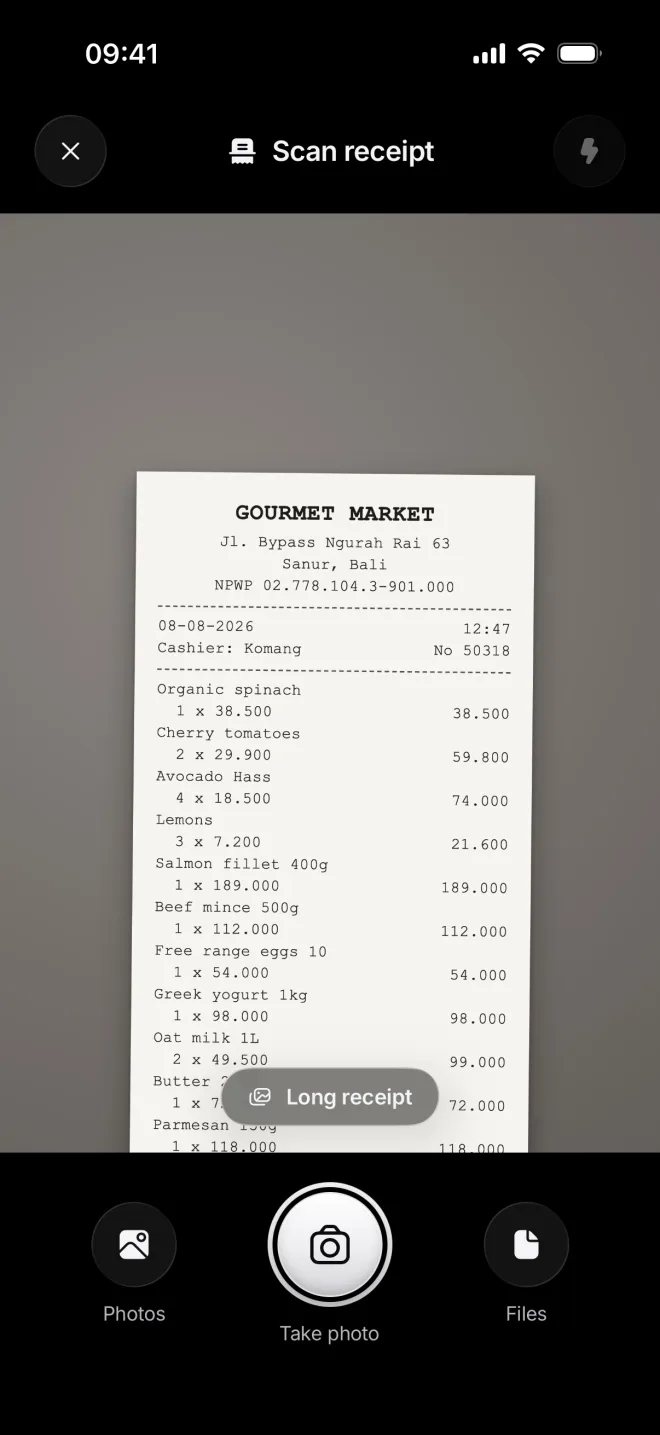
Choose Long receipt
In the scanner, tap Long receipt above the shutter. Start from the top of the receipt: the shop, the date and the first items.
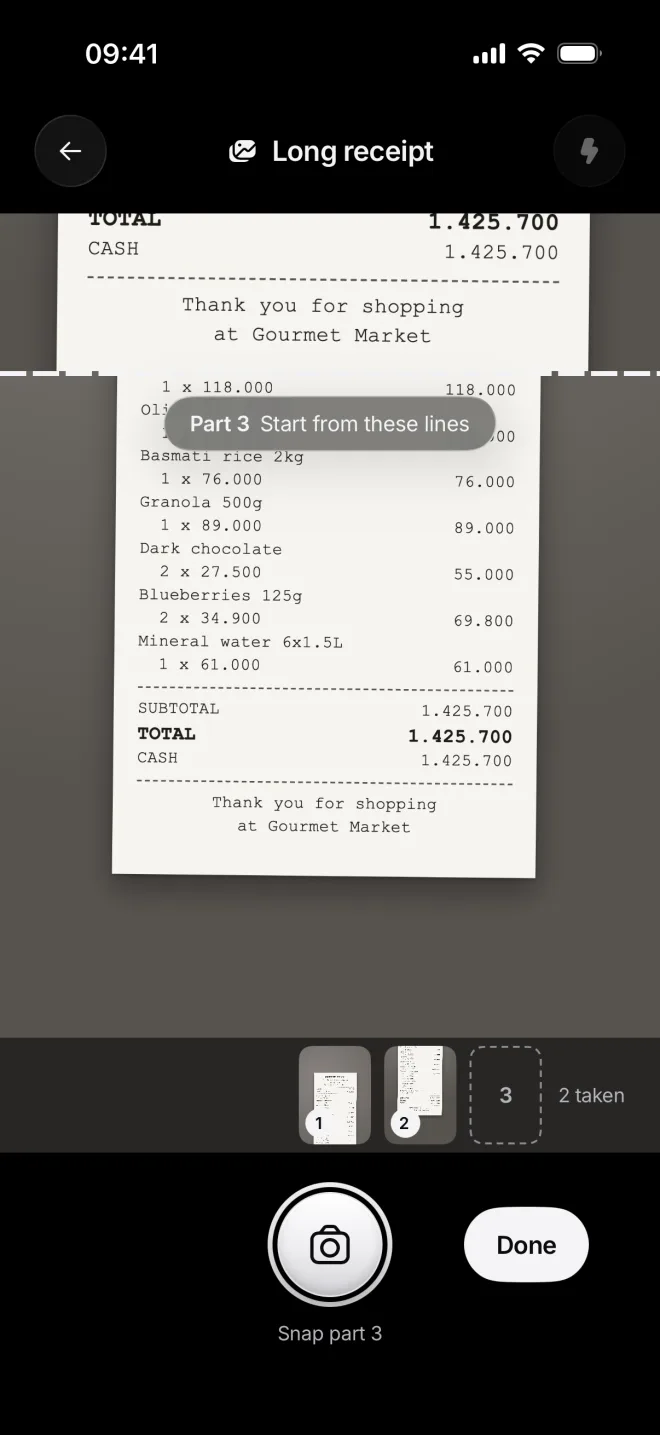
Take as many parts as it needs. The strip at the bottom shows the ones you’ve taken, and you can check each one of them.
-
Overlap each part
From the second part on, moni shows the last lines of the previous one at the top. Start the next photo from those lines.
The repeated lines tell moni where the parts meet. Once the total is in the last part, tap Done instead of the shutter button.
-
Check the whole receipt
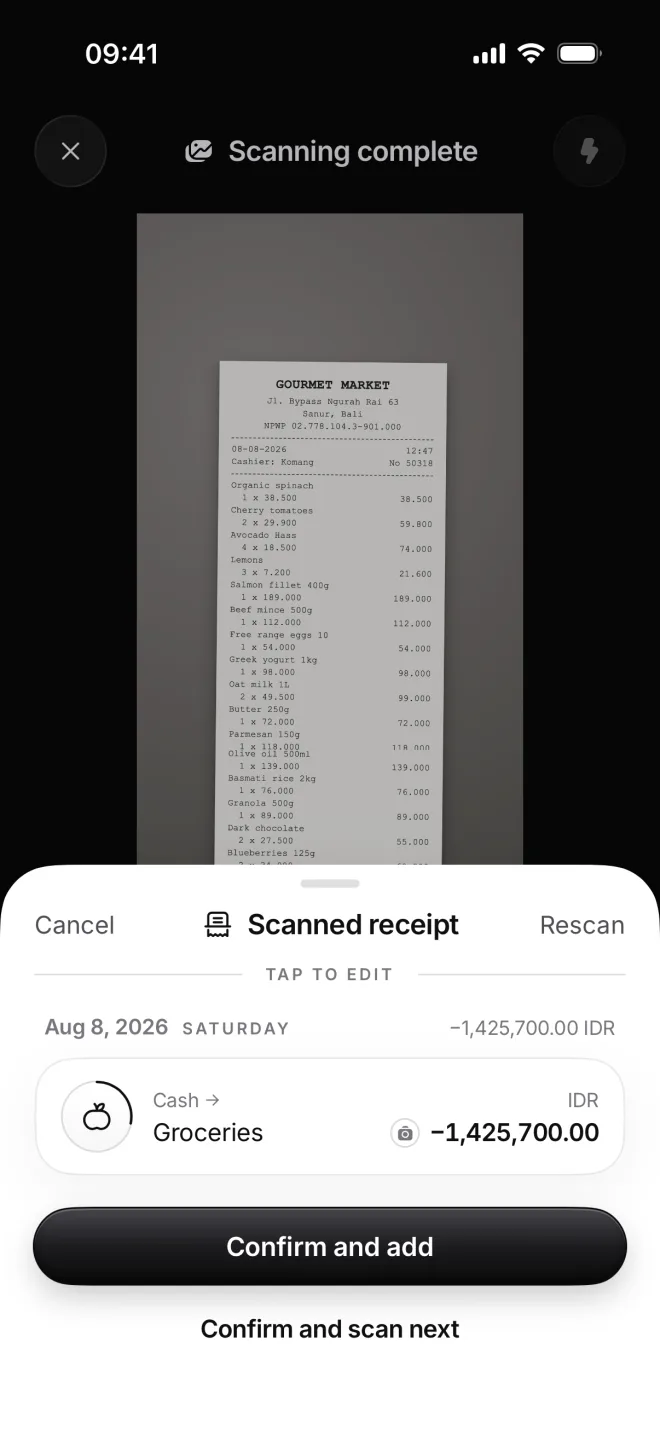
moni joins the parts into one receipt and reads it as a whole: here Gourmet Market, 1,425,700 rupiahs, one total for all of it.
Confirm and add saves it with every part attached as one photo. Took too many? Rescan starts over from the first part.