Make moni yours
Light or dark, monichrome or the color of your iPhone, icons or emoji: set moni up so it truly feels like your own, and choose what Home shows you every day.
-
Pick a theme
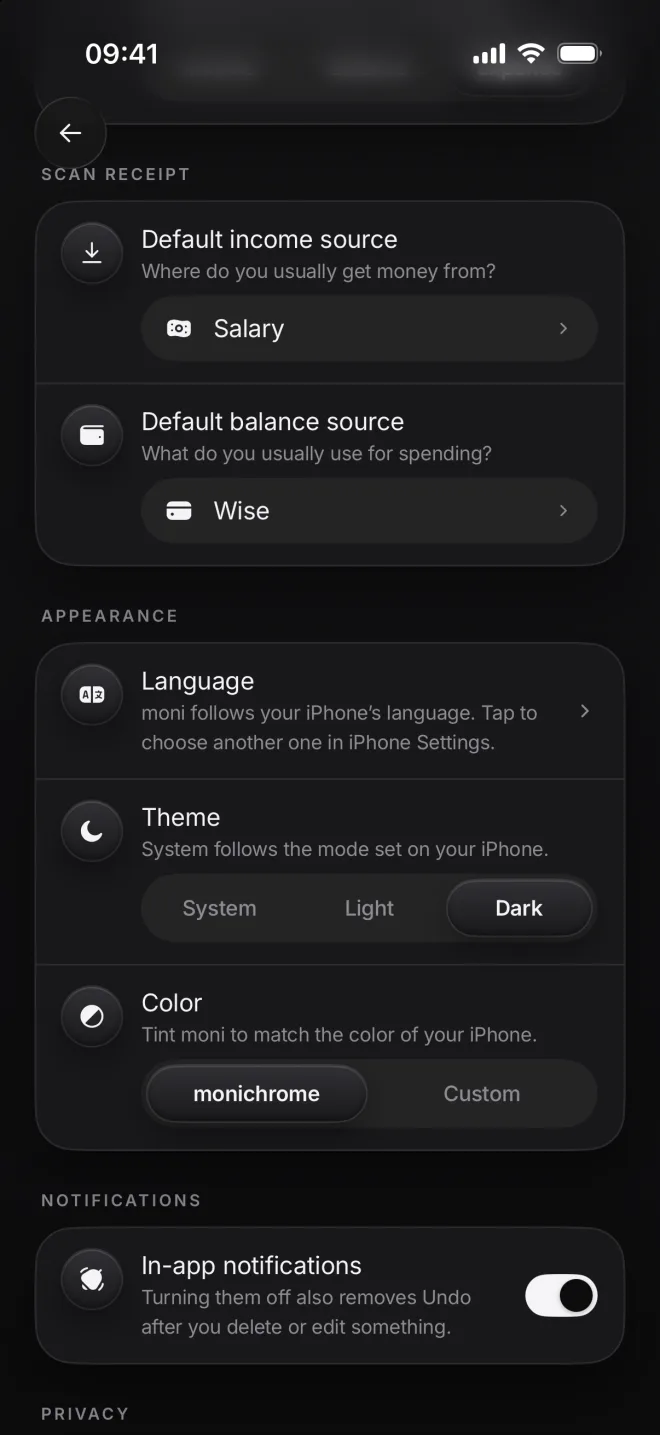
Open Settings and find Appearance. Theme follows your iPhone by default; pick Light or Dark to keep moni the same all day.
-
moni in the dark
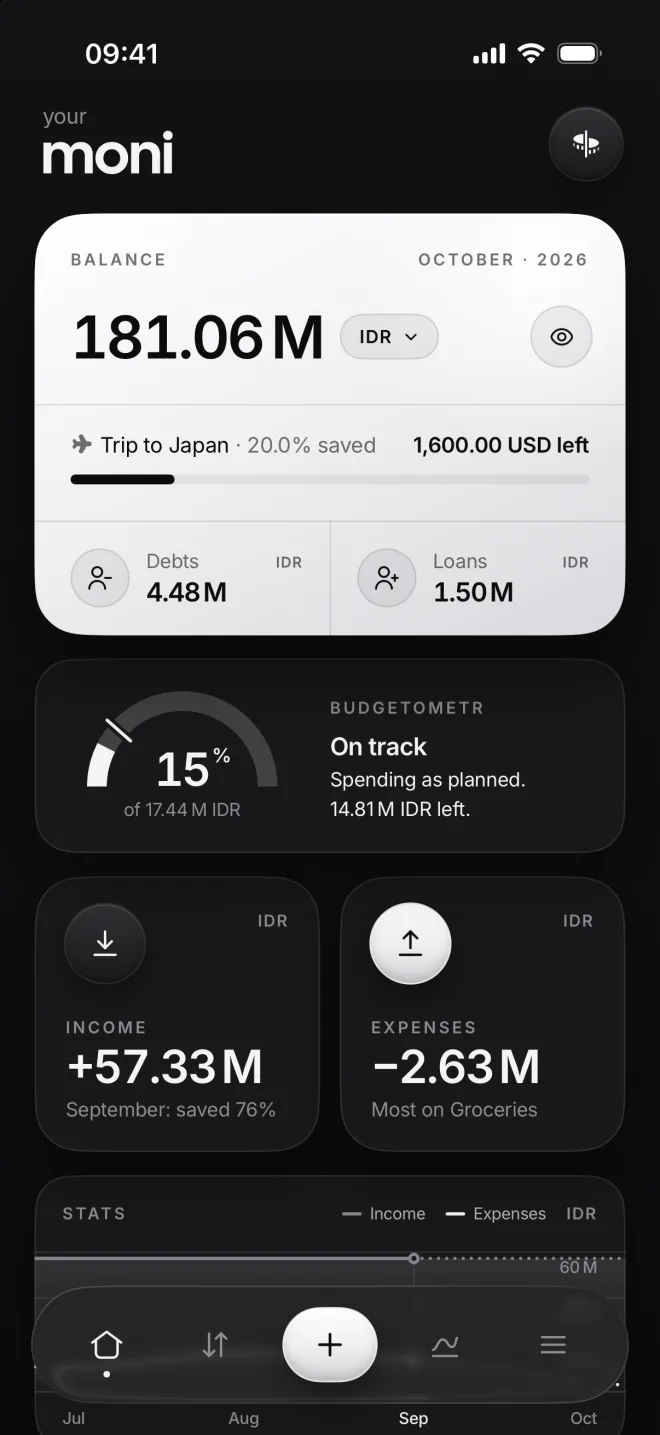
In Dark, the Balance card turns light, so your money still stands out at a glance. Everything else follows, down to charts.
-
Pick a color
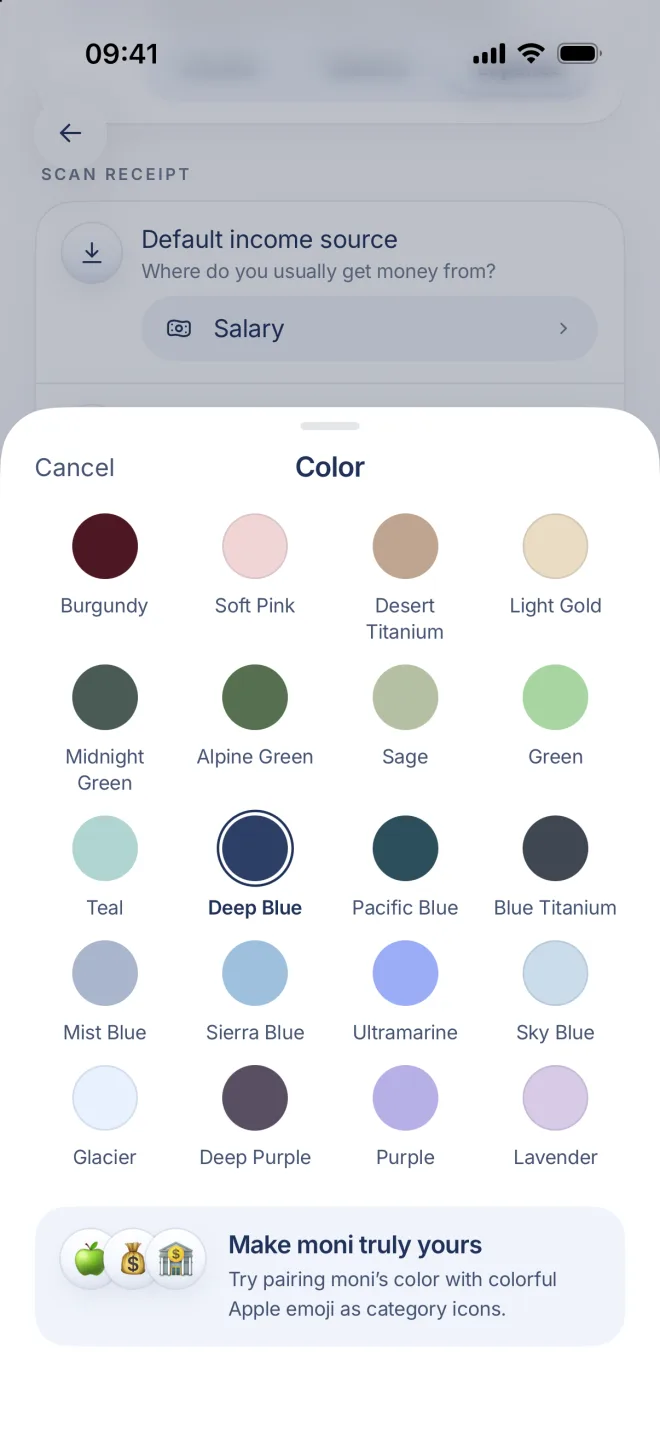
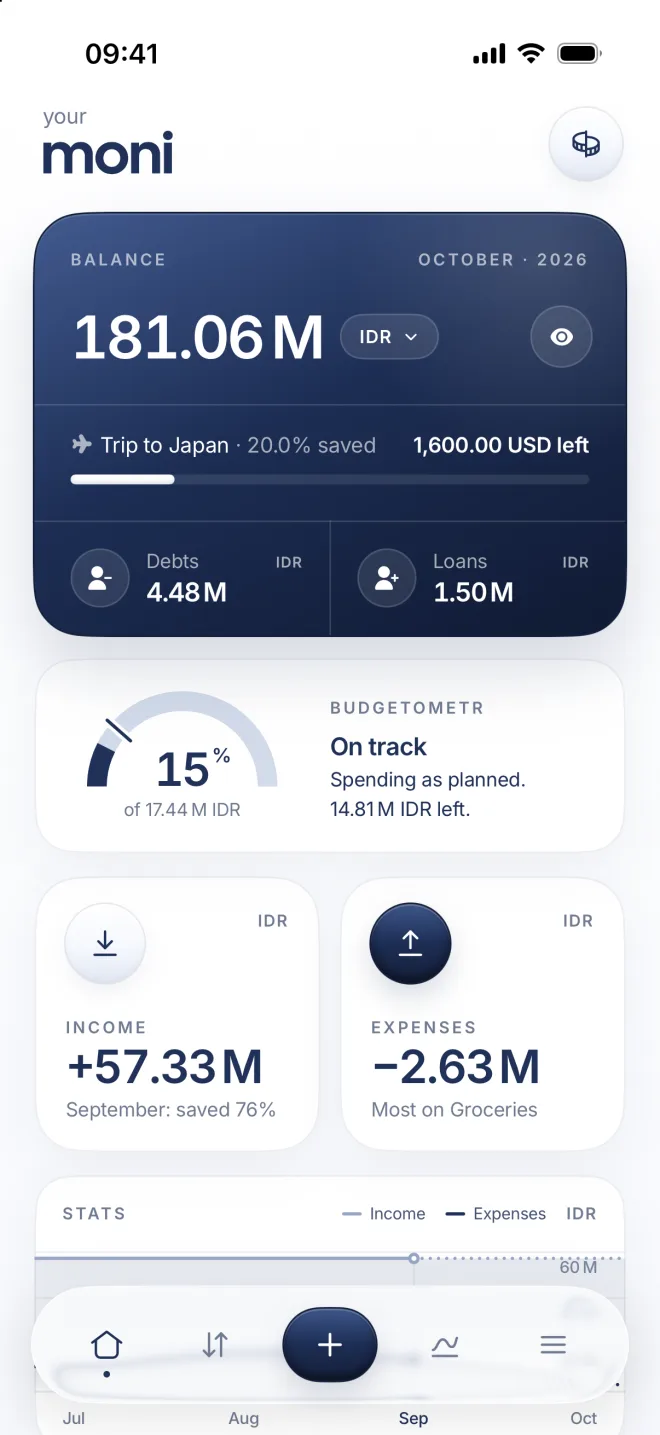
Color tints all of moni. Tap Custom and pick one of 20 colors, like Deep Blue here: it’s applied in one tap, everywhere at once.
Every color was picked to match the body of an iPhone, so moni looks like a part of your phone, from Burgundy to Lavender.
-
All of moni follows
All of moni follows the color, from the Balance card to its buttons and charts. Tap monichrome to go back to black and white.
-
Emoji as icons
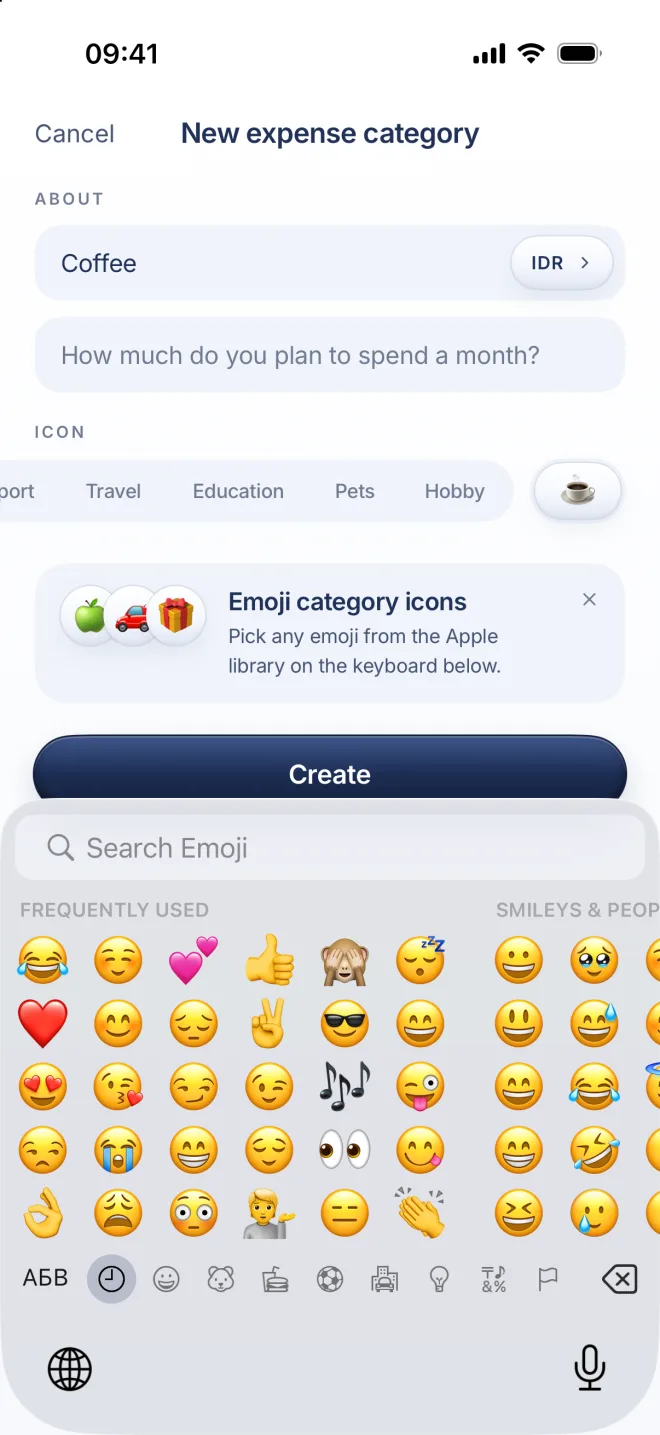
Any Apple emoji can be a category icon. Tap the last chip after the groups, and the emoji keyboard comes up: pick one, like ☕.
Emoji bring color to moni: they show wherever the category does, in its circle on Home, in Flow, in Stats and in your widgets.