Hide amounts and lock moni
Open moni in a café or on the bus without showing your money to anyone. One tap hides every amount, and Face ID keeps moni locked for everyone else around.
-
Hide the amounts
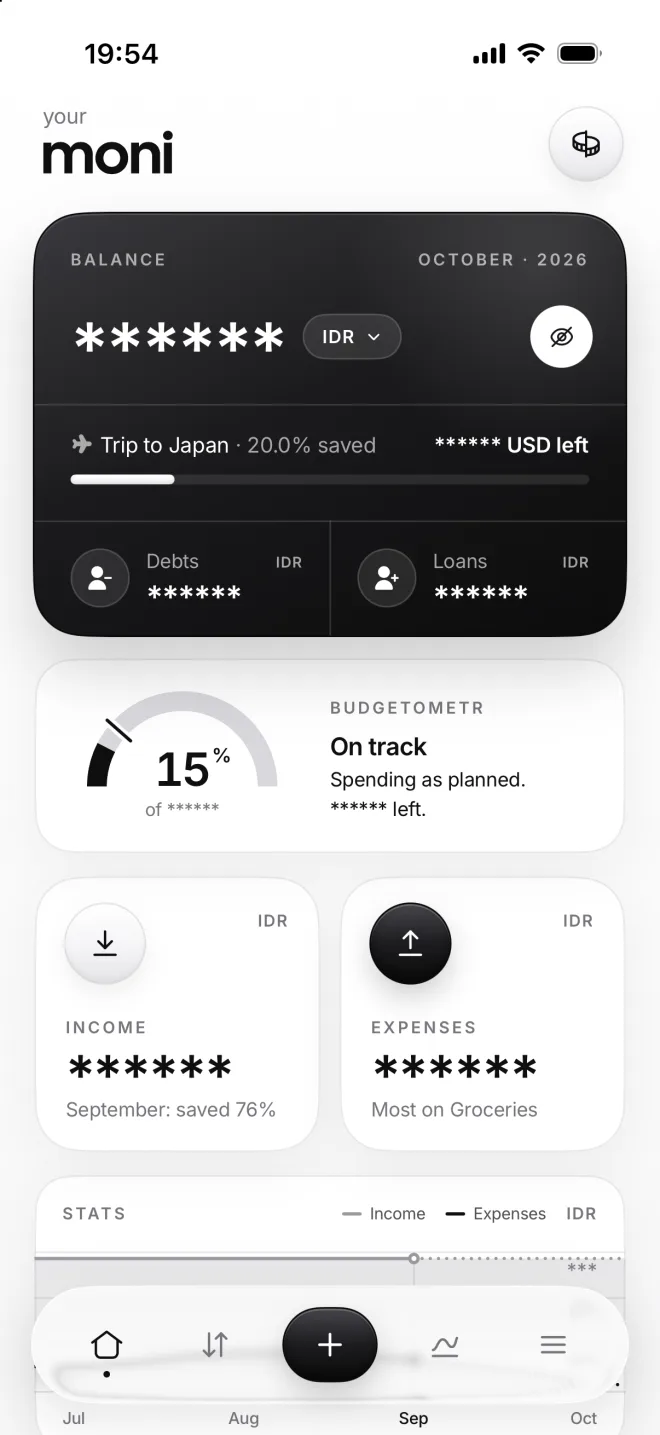
Tap the eye on the Balance card. Every amount on Home turns into stars with a soft wave and stays hidden until you tap again.
Percentages stay, so you still see how your month goes: 15% of the budget is spent, right on track, and 20% of the trip saved.
-
Hidden in Menu too
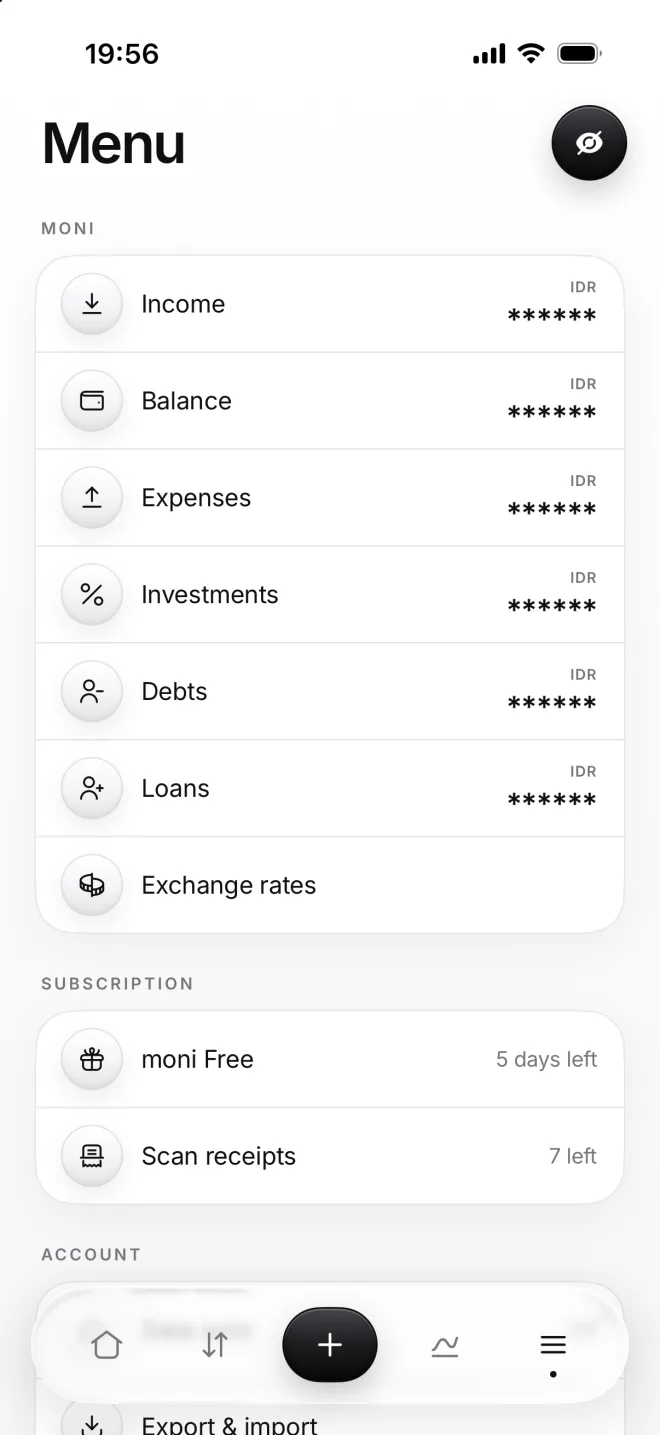
The eye is the same everywhere: hide amounts on Home, and Menu hides them too. Flow keeps every transaction’s amount.
-
Lock moni
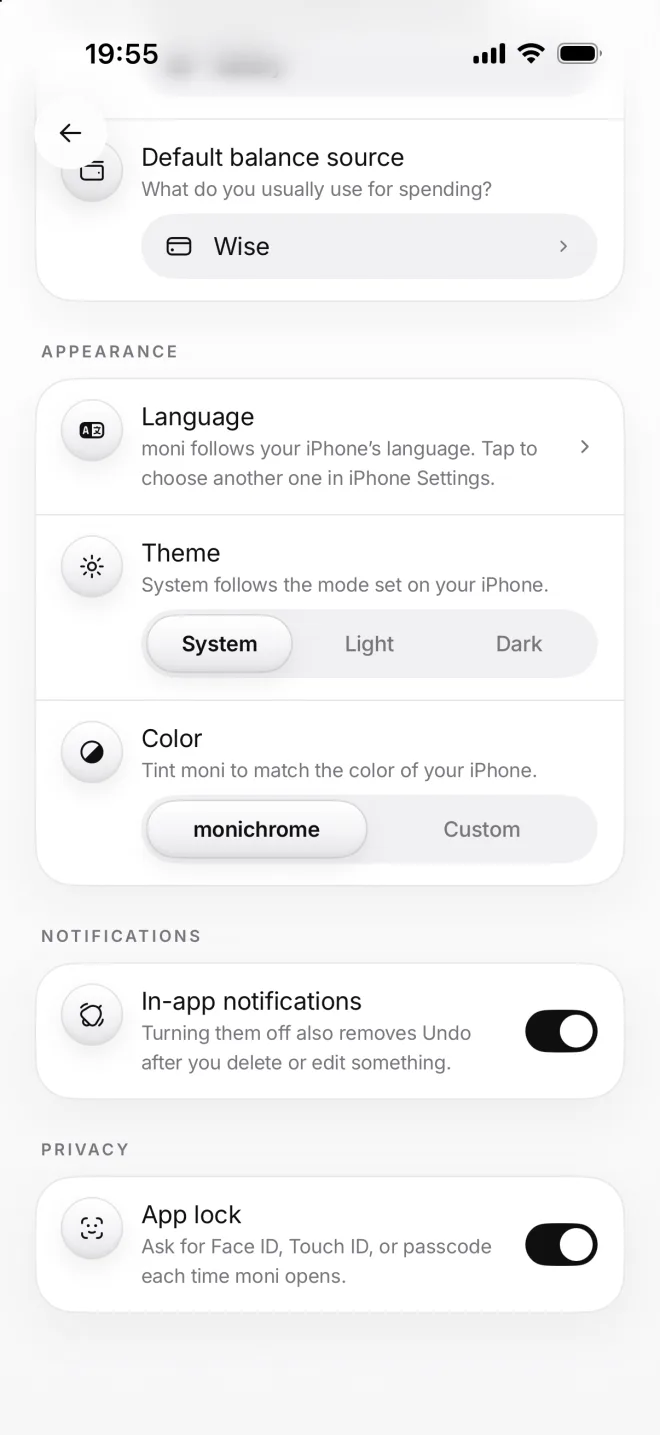
In Settings, under Privacy, turn on App lock. From then on, moni asks for Face ID, Touch ID or your passcode each time it opens.
If something goes wrong
Face ID didn’t work
Tap Unlock to try again, or enter your iPhone passcode instead. moni uses the same Face ID and passcode as your iPhone, and it keeps none of its own at all.
How often does it lock?
moni asks again when you open it after closing it, or come back after more than a minute away. Switching to another app for just a short moment won’t lock it.
I can’t turn App lock on
App lock needs a passcode on your iPhone. Set one up in iPhone Settings, under Face ID & Passcode, and then come back and turn on App lock in moni again.
Do widgets hide amounts too?
No, widgets always show amounts: they’re made to be seen at a glance, right on the Home Screen. If you’d rather not show them, you can simply remove them.